
How to Set Up a Blink Camera in 2026: Easy Installation & Settings Guide

Setting up a Blink camera is usually straightforward, but the correct steps depend on the exact model because some Blink cameras require a Sync Module while others can connect without one. The safest sequence is to identify your camera first, prepare a current Blink app and 2.4 GHz Wi-Fi network, complete account verification, add any required Sync Module, pair the camera by QR code or serial number, and test Live View before drilling or mounting anything.
After the hardware is online, motion zones, sensitivity, clip length, storage, notifications, and privacy settings determine whether the system is useful or constantly sending false alerts. This 2026 guide covers the complete process from unboxing to final walk-testing, with current Blink requirements and setup differences for Outdoor, Indoor, Mini, Floodlight, and Video Doorbell models.
Quick Answer: How Do You Set Up a Blink Camera?
Install the current Blink app, create and verify your account, connect to a 2.4 GHz Wi-Fi network, then add a Sync Module first if your camera model requires one. From the Blink Home screen, tap the + icon, choose the correct device category, scan the camera’s QR code or enter its device serial number manually, and add it to a system. Before mounting, confirm Live View and signal strength at the intended location. Then mount the camera, arm the system, configure motion zones and notifications, choose cloud or compatible local storage, and perform a final day/night motion test.
Key Takeaways
Most setup problems come from skipping one dependency, usually the wrong Wi-Fi band, an unconfigured Sync Module, weak signal, or mounting before the camera has been tested. These are the points I would confirm first.
- Blink cameras require 2.4 GHz 802.11b/g/n Wi-Fi with at least 2 Mbps upload speed per device.
- A Sync Module is required for some Blink models but not for all current cameras.
- Keep the Blink app and your phone’s operating system updated for setup compatibility.
- QR-code scanning is the standard pairing method, with manual serial number entry available if scanning fails.
- Test Live View, motion detection, and signal strength at the installation spot before mounting the camera.
- The system must be armed for motion alerts and recordings to work as expected.
- Storage options vary by camera, Sync Module, and subscription, while basic setup and Live View do not require a subscription.
- Check power, Wi-Fi, account, and Sync Module connections before resetting the camera.
If I can add the device, see Live View, receive a controlled motion alert, and review a clip from the storage method I intend to use, I consider the basic Blink setup complete.
What You Need Before Setting Up a Blink Camera

The original setup process is easier when every dependency is ready before the camera is mounted. I keep the camera on a desk or table until the account, network, and device pairing are confirmed.
Identify Your Exact Blink Camera Model
Start with the model name printed on the packaging, device label, or Blink app. This matters because Outdoor 4, Outdoor/Indoor (3rd Gen), Mini-series cameras, Video Doorbells, and wired cameras do not all follow the same Sync Module and power requirements.
Use a Supported Phone or Tablet
Blink currently requires the latest Blink app plus a supported mobile device. As of September 2026, Blink has iPhone/iPad on iOS 17 or later, Android phones/tablets on Android 10 or later, and Fire Tablet with Fire OS 8.
Prepare 2.4 GHz Wi-Fi
Blink cameras use 2.4 GHz Wi-Fi and currently require at least 2 Mbps upload speed per Blink device. Captive-portal networks such as many hotels or schools are not supported, mobile hotspots are not recommended, and a VPN can interfere with setup.
If your router combines 2.4 GHz and 5 GHz under one network name, that can still work on many routers, but the Blink device itself needs access to the 2.4 GHz network. Keep the Wi-Fi password available before you begin.
Have the Correct Power Source Ready
Blink power varies by model. Battery cameras may use AA lithium batteries, Mini cameras use wired USB power, some cameras support USB-C power, and wired doorbell or floodlight products have their own electrical requirements. Use the power method specified for the exact device.
Know Whether You Need a Sync Module
This is the most important model-specific check. Current Blink support lists Outdoor 4, Outdoor/Indoor (3rd Gen), XT/XT2, and several newer battery models as Sync Module-dependent, while Mini-series cameras, Wired Floodlight, and certain Video Doorbell models can operate without a Sync Module.
If the app says the camera is a dependent device or that no Sync Module is available, add a compatible Sync Module to the account first rather than repeatedly trying to pair the camera.
How I Test and Set Up Blink Cameras at GearVerdicts
I do not mount a Blink camera permanently the moment it comes out of the box. I set it up indoors first, confirm the account and Sync Module, check Live View, then move it to the real installation area and test the connection before I drill anything. That simple order catches most setup problems while the camera is still easy to reach.
I have spent years testing smart-home gear in real homes, and for Blink specifically I bought and tested the Outdoor 4 myself rather than relying on a manufacturer sample. I used it through repeated motion alerts, day and night video, app sessions, and real outdoor placement. I use the same practical setup checklist for the Blink cameras I cover on GearVerdicts.
- I test network reliability first. I confirm the camera can maintain Live View and communicate from the intended location, not just from a table beside the router.
- I walk across the field of view. Blink motion sensors generally respond better to movement crossing the frame than a person moving directly toward or away from the camera.
- I test day and night. A location that looks perfect in daylight can suffer from glare, infrared reflections, porch lights, or deep shadows after dark.
- I tune alerts instead of maximizing sensitivity. Activity Zones, sensitivity, retrigger time, and clip settings should reduce useless notifications without creating blind spots.
- I test remote access away from home Wi-Fi. I switch my phone to cellular data and confirm Live View and notifications still work remotely.
- I verify the storage path. If I plan to use cloud storage or local storage through a Sync Module, I confirm that a real motion event appears where I expect it.
- I leave mounting until the system passes the tests. Once video, motion, audio, storage, and connection are working, I secure the camera and repeat the walk test.
For the camera I have tested most deeply, see my Blink Outdoor 4 review, where I cover real-world battery use, video quality, motion alerts, low-light performance, and the Blink app.
How to Set Up a Blink Camera: Step-by-Step
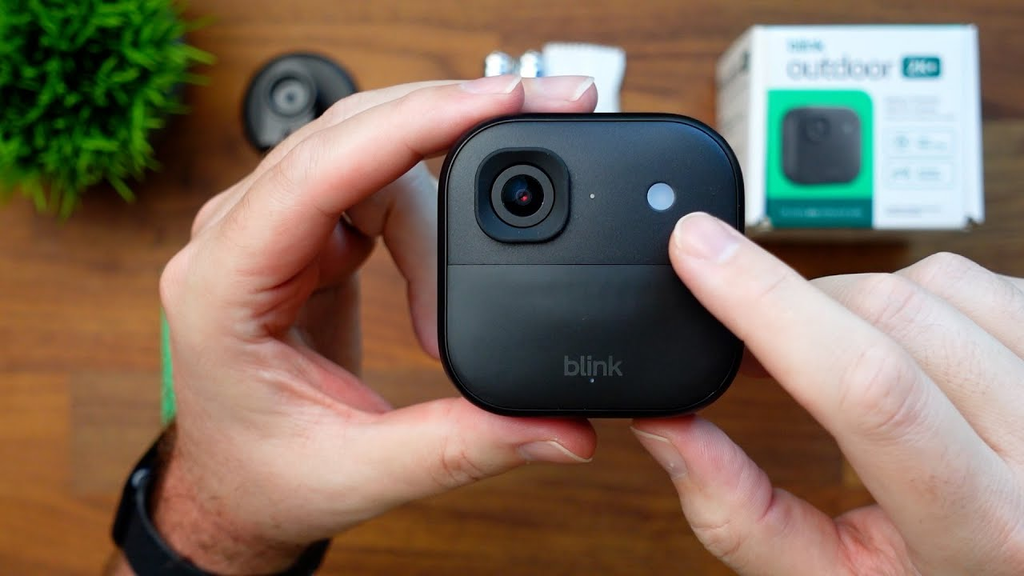
The steps below are arranged in the order I would use for a new Blink system. Model-specific screens can differ, so use the exact category shown in your current Blink app rather than forcing an older walkthrough to match a newer camera.
Step 1: Install the Blink App
Download or update the official Blink app on your supported phone or tablet. Use the current app version before adding devices because older setup screens and unsupported operating systems can create connection problems that look like camera failures.
Step 2: Create and Verify Your Blink Account
Open the Blink app, create an account, select your location, enter a valid email address, and verify it with the code Blink sends. Blink also uses a phone number for multi-factor authentication, so use a number you can access during setup.
Finish account verification before pairing hardware. If login or verification is broken, adding and removing devices will not fix the account problem.
Step 3: Set Up the Sync Module if Your Camera Requires One
Plug in the Sync Module, tap the + icon in the Blink app, choose Sync Module, and scan the QR code on the module or enter the serial number manually. Create or select a Blink system, then follow the app prompts to connect the module to your 2.4 GHz Wi-Fi.
Wait until the app confirms the Sync Module is online before adding a dependent camera. A Sync Module 2 can manage up to 10 compatible devices in one Blink system and can support local recording with a compatible USB drive.
Step 4: Add the Blink Camera to the App
From the Blink Home screen, tap the + icon and choose the device category that matches your camera. Scan the QR code on the camera or enter its Device Serial Number manually if scanning is difficult.
For Outdoor 4, Blink places the QR code inside the back cover. Once the serial number is recognized, choose the Blink system you want the camera to join and wait for the Camera Added confirmation.
Step 5: Give the Camera a Clear Name
Rename the device based on location, such as Front Porch, Driveway, Side Gate, or Back Patio. Clear names matter once you have multiple cameras because notifications and Alexa commands are much easier to understand.
Avoid generic names such as Camera 1 if you expect the system to grow. A practical naming convention saves time later when you change motion settings for one specific location.
Step 6: Test Live View Before Mounting
Take the unmounted camera to the intended location and open Live View. Confirm that the picture loads consistently and that the scene includes the area you actually need, not just the largest possible view.
On Outdoor 4, Blink recommends checking both Wi-Fi and Sync Module signal and aiming for at least three bars. If the signal is weak at the final location, fix placement before you drill.
Step 7: Choose the Best Mounting Position
Choose a stable surface with useful coverage and minimal false-motion sources. For Outdoor 4, Blink specifically notes that motion moving across the field of view is easier to detect than movement traveling directly toward or away from the camera.
Avoid framing large areas of sky, busy roads, flashing lights, swaying branches, or other constant movement unless you plan to exclude those areas with Motion Zones. Keep battery-powered cameras reachable for future battery changes.
Step 8: Mount the Camera Securely
Use the correct hardware for the surface and follow the mounting instructions for the exact model. After the mount is secure, attach the camera, adjust the angle, and check Live View again before calling the installation finished.
If you are installing a Blink Video Doorbell rather than a standard camera, mounting and wiring choices are different. My smart doorbell installation guide covers battery versus wired mounting, positioning, and final testing in more detail.
Step 9: Arm the Blink System and Enable Motion Detection
A newly configured Blink system can be disarmed, so successful Live View does not automatically mean motion alerts are active. Arm the system and confirm Motion Detection is enabled for the camera you want to monitor.
Walk through the monitored area once the system is armed. If the alert does not arrive, check the system state, camera Motion Detection setting, notification permissions, and app account before changing multiple settings.
Step 10: Configure Motion Zones and Sensitivity
Use Motion Zones to exclude areas that create unwanted alerts, such as a road, tree, fan, or reflective surface. Blink calls these Activity Zones in current support documentation, and the exact zone controls vary by camera.
Start with moderate sensitivity and adjust after real walk tests. Maximum sensitivity is not the same as maximum security because excessive triggers can bury important events and reduce battery life on battery-powered cameras.
Step 11: Choose Clip, Notification, and Storage Settings
Review clip length, retrigger time, early notification behavior, video quality, and storage. Blink supports retrigger timing adjustments on many models, and the best setting depends on whether the camera watches a quiet doorway or a busy path.
Then decide whether you want Blink cloud features or compatible local storage. You can read my Blink subscription guide for the practical difference between free use, local recording, and paid cloud features.
Step 12: Perform a Final Real-World Test
Test the camera the way it will actually be used. Walk across the scene, approach from different directions, trigger an alert, open the clip, use two-way audio if supported, and check the view after dark.
Finally, switch your phone off home Wi-Fi and confirm remote access over cellular data. A camera that only works while your phone is on the same home network is not fully validated for normal security use.
Model-Specific Blink Setup Notes
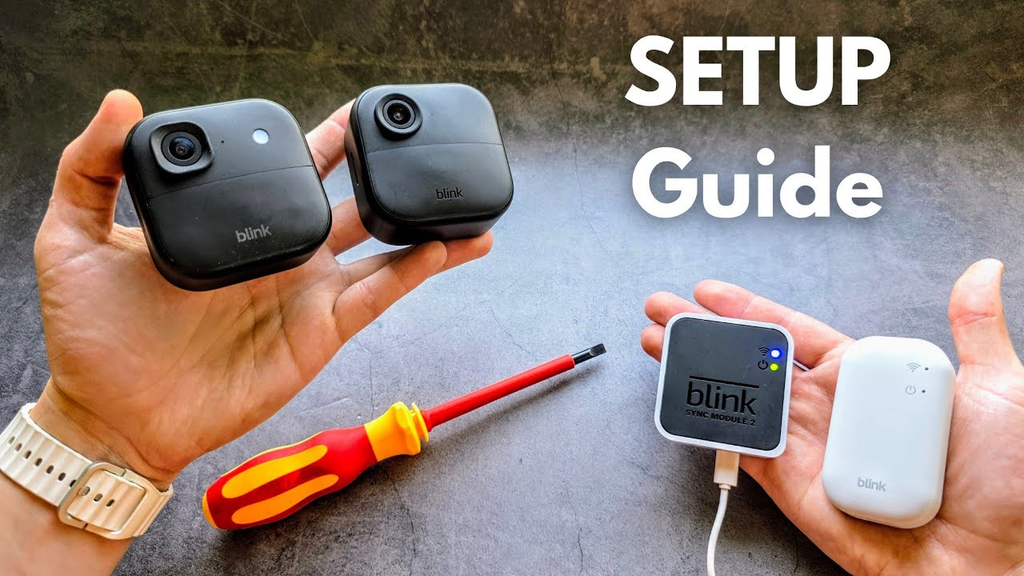
The setup sequence is broadly similar across Blink, but the hardware dependency changes by product. This is where many generic tutorials become inaccurate.
Blink Outdoor 4 and Outdoor Cameras
Outdoor 4 requires a compatible Sync Module before it can be added. The camera pairs by QR code or serial number, then joins a Blink system. After pairing, test the Wi-Fi and Sync Module signals at the mounting point and use Live View to frame the scene.
Outdoor 4 also supports advanced Motion Zones, Privacy Zones, and optional Extended Range when paired with compatible Sync Module XR hardware in supported regions. For deeper performance context, see the GearVerdicts Blink Outdoor 4 review.
Blink Mini and Mini 2
Mini-series cameras are plug-in devices and do not require a Sync Module just to create and manage their own system. Power the camera first, add it from the + menu, scan its QR code, choose or create a system, and follow the app prompts to connect it to Wi-Fi.
A Sync Module can still be useful in a larger Blink setup depending on the model and storage plan, but it is not the same hard requirement as it is for Outdoor 4.
Blink Video Doorbell
Blink has multiple doorbell generations with different Sync Module and wiring behavior, so use the exact model name shown in the app. Current Blink support has some newer battery doorbell models as Sync Module-dependent while other doorbell models can manage their own system.
For any doorbell, confirm the app setup and Live View before final mounting. If the device is wired, follow the electrical limits in the specific Blink manual and do not guess based on another brand or generation.
Blink Wired Floodlight Camera
The Wired Floodlight Camera can create and manage its own Blink system without a required Sync Module. Because it uses permanent power, installation is fundamentally different from a battery Outdoor camera and may involve household electrical wiring.
If new line-voltage wiring is required, use a qualified electrician rather than treating the job like a battery-camera mount.
Blink Camera Features to Configure After Setup
Getting the camera online is only the first half of setup. The settings below determine alert quality, battery use, privacy, clip usefulness, and how often you open the app for the wrong reason.
Live View
Live View lets you check the current camera feed from the Blink app. I test it before mounting, after mounting, and again over cellular data so I know the camera can be reached both locally and remotely.
Motion Detection
Motion Detection must be enabled on the camera and the Blink system must be armed for normal motion alerts. If notifications are missing, I confirm both settings before changing Wi-Fi or resetting hardware.
Motion Sensitivity
Sensitivity controls how readily a camera reacts to movement, but higher is not always better. I raise or lower it after real walk tests because a setting that catches every branch movement can create alert fatigue and reduce battery life.
Activity Zones
Activity Zones let you mark parts of the image as inactive for motion detection. I use them to exclude streets, moving trees, flags, ceiling fans, and other predictable motion that does not need an alert.
Privacy Zones
Supported Blink models allow Privacy Zones that prevent selected areas from being recorded. This is useful when a wide camera view includes a neighbor’s window, doorway, or another area you do not want captured.
Clip Length
Clip length controls how long supported Blink cameras record after motion. Longer clips provide more context but can consume more storage, bandwidth, and battery, so I use the shortest duration that still captures the event clearly.
Retrigger Time
Retrigger time is the gap after one motion recording before another event can begin. Blink allows adjustable retrigger timing on supported cameras, which is useful for balancing repeated alerts against missed follow-up activity.
Early Notification
Early Notification can send the alert as soon as motion is detected instead of waiting for the entire clip to finish. Availability and whether it can be changed depend on the camera model, so I verify the option in Device Settings rather than assuming it exists everywhere.
Two-Way Audio
On supported Blink cameras, two-way audio lets you listen and speak through the app. I test it from outside the home network because delay and connection quality matter more in real use than whether a microphone icon appears.
Smart Detection and Person Alerts
Smart Detection availability depends on the camera and Blink plan. Outdoor 4 supports Person Detection with an active Blink Subscription Plan or trial, so I separate hardware setup from subscription-dependent alert features.
Local Storage
Local recording depends on the Sync Module and camera. Sync Module 2 uses compatible USB storage, while Sync Module XR uses compatible microSD storage; Sync Module Core does not provide Local Storage or Clip Backup.
Alexa Integration
Blink can integrate with supported Alexa devices for functions such as viewing compatible camera feeds and using supported announcements or routines. I finish the basic Blink setup first, then add Alexa so smart-home integration is not confused with a camera connection problem.
Blink Setup Requirements & Compatibility at a Glance
The details above explain the setup in context. The table below collects the main current requirements and compatibility points in one place so you can check the system before troubleshooting.
Blink changes its product lineup over time, so I treat this as a 2026 setup reference rather than a permanent rule for every future model. If your exact camera is newer than the models listed here, use the model name in the current Blink app and official support documentation.
| Feature / Requirement | Current Detail | Why It Matters During Setup |
|---|---|---|
| Mobile app | Current Blink app | Required to create account, add devices, view cameras, and manage settings |
| iPhone / iPad | iOS 17 or later | Current Blink system requirement as of Sep. 2026 |
| Android | Android 10 or later | Current Blink system requirement as of Sep. 2026 |
| Fire Tablet | Fire OS 8 | Current Blink-supported Fire Tablet requirement |
| Wi-Fi band | 2.4 GHz 802.11b/g/n | Blink cameras do not use 5 GHz as their required device connection |
| Internet upload | At least 2 Mbps per Blink device | Slow upload can affect clips, Live View, and notifications |
| Captive portal Wi-Fi | Not supported | Hotel/school-style browser sign-in networks can block setup |
| Mobile hotspot | Not recommended | Blink warns that hotspot connections can be unreliable |
| QR code / DSN | Either can add a device | Manual serial entry is available if QR scanning fails |
| Sync Module 2 | Up to 10 compatible devices; USB local storage | Useful for system management and eligible local recording |
| Sync Module XR | Compatible local storage via microSD | Also supports Extended Range features with supported cameras/regions |
| Sync Module Core | Compatible with Blink cameras; no Local Storage | Do not buy or choose it expecting USB/microSD recording |
| Outdoor 4 | Sync Module required | Add the Sync Module first, then add the camera to its system |
| Mini / Mini 2 | Sync Module not required for standalone system | Plug-in camera can be added directly to its own system |
| Wired Floodlight | Sync Module not required for standalone system | Can be managed without a Sync Module |
| Storage subscription | Not required for basic setup | Cloud history and smart features vary by plan and camera |
The table highlights the two checks that solve the largest number of setup problems: use supported 2.4 GHz Wi-Fi, and confirm whether the exact camera is dependent on a Sync Module before trying to pair it.
Where to Mount a Blink Camera for Better Motion Detection
Good placement affects detection, video usefulness, false alerts, battery life, and connection quality at the same time. I would rather move a camera two feet during setup than spend months trying to fix a bad angle with sensitivity settings.
- Favor cross-traffic. For Outdoor 4, Blink says motion moving across the field of view is easier to detect than motion coming directly toward or away from the camera.
- Keep the important area in the middle distance. A person who is too far away will occupy fewer pixels, while a camera mounted too close can miss the approach path.
- Avoid constant movement. Branches, flags, roads, fans, reflections, and flashing light can create unnecessary alerts.
- Check both day and night framing. Infrared reflections from walls, soffits, railings, glass, or bright surfaces can make a nighttime angle worse than the daytime view suggests.
- Protect the connection. A beautiful angle is useless if the camera cannot maintain Wi-Fi or Sync Module communication.
- Keep maintenance practical. Battery-powered cameras should be reachable without unsafe ladder work every time batteries or mounting hardware need attention.
After mounting, repeat the exact same walk test you performed before drilling. A small rotation can change motion behavior enough that settings need one final adjustment.
Can You Set Up a Blink Camera Without a Subscription?
Yes. A Blink Subscription Plan is not required just to create an account, pair a compatible camera, use basic Live View, or receive the basic functionality available without a plan. The important difference is how recordings and premium detection features are handled.
For compatible systems, local storage can be used with the appropriate Sync Module and removable storage. Cloud recording and certain smart detections are subscription features, and the exact benefits vary by device and current plan.
If recurring cost matters to your setup, read my Blink camera subscription guide before deciding which Sync Module and storage method to buy.
How to Reset a Blink Camera Safely
Resetting is useful when the model’s official troubleshooting process calls for it, but I do not use reset as the first response to every setup failure. A camera that cannot connect because the Wi-Fi is wrong, the account is unverified, or a required Sync Module is missing will still have the same underlying problem after a reset.
Blink reset behavior varies by model. Mini 2, for example, has a reset button near the mount and can enter setup mode after a model-specific long press while powered, while doorbells and other cameras use different procedures. Some resets also do not remove the device from the account or erase every setting.
- Confirm power first. A reset cannot fix a camera that is not receiving the correct battery or wired power.
- Confirm the Blink account. Make sure you are signed into the account where the system and Sync Module are registered.
- Confirm 2.4 GHz Wi-Fi. Check the network name, password, and internet access before resetting hardware.
- Confirm the Sync Module if required. A dependent camera cannot be added until the module is online.
- Use the exact model’s reset procedure. Do not copy button locations or press durations from another Blink camera generation.
- Pair again only when the device shows the correct setup state. Follow the current Blink app prompts after the model-specific reset completes.
If repeated resets return the same error, stop resetting and troubleshoot the exact stage that fails. Repeated factory-style actions can waste time when the real issue is network, account, or system configuration.
Troubleshooting Common Blink Camera Setup Problems
I troubleshoot Blink in layers: account, power, network, Sync Module, pairing, then settings. Changing all six at once makes it impossible to know what actually solved the problem.
Blink Camera Will Not Connect to Wi-Fi
Confirm the network is 2.4 GHz, re-enter the password carefully, and verify the internet connection is working. If your phone is using a VPN, disable it temporarily during setup. Avoid captive-portal networks and mobile hotspots, which Blink does not recommend for normal installation.
Camera Says a Sync Module Is Required
That message usually means the camera is a dependent device and no compatible Sync Module is active in the account. Add the Sync Module first, connect it to the system and Wi-Fi, then repeat camera pairing.
The QR Code Will Not Scan
Increase room lighting, clean the code and phone camera, and hold the phone steady at a distance where it can focus. If scanning still fails, choose the manual serial or Device Serial Number entry option in the Blink app.
Live View Works but Motion Alerts Do Not
Check whether the Blink system is armed and whether Motion Detection is enabled for that camera. Also check phone notification permissions and whether Blink Notification Snooze is active before changing camera sensitivity.
Too Many Motion Alerts
Lower sensitivity gradually, exclude nuisance areas with Activity Zones, increase retrigger time if appropriate, and adjust the camera so roads, branches, or reflective surfaces occupy less of the active frame. Do not solve alert overload by simply disabling motion detection.
Motion Is Detected Too Late
Reposition the camera so people move across the field of view rather than straight toward the lens. Test at multiple distances and review sensitivity, Motion Zones, and Early Notification availability for the exact model.
Local Storage Is Not Recording
Confirm that the camera is eligible for local storage and that you are using a Sync Module that actually supports it. Sync Module 2 uses a compatible USB drive, Sync Module XR uses compatible microSD storage, and Sync Module Core does not provide Local Storage.
Camera Goes Offline After Mounting
If the device was reliable indoors but fails after mounting, the final location is likely changing signal quality. Move the camera, router, or Sync Module to improve the link rather than assuming the camera itself failed.
Once the setup works again, repeat Live View, motion, notification, and storage tests before changing any other settings. One stable baseline is easier to optimize than a system with several simultaneous changes.
Common Blink Camera Setup Mistakes to Avoid
Most Blink installation mistakes happen before the first useful clip is recorded. Avoiding these errors saves more time than learning complicated reset procedures later.
- Mounting before pairing. Set up the account, module, camera, and Live View while the device is still easy to reach.
- Assuming every Blink camera needs the same hub. Current Blink models have different Sync Module requirements, so identify the model before buying extra hardware.
- Trying to use 5 GHz-only Wi-Fi. Blink’s camera setup requires 2.4 GHz Wi-Fi.
- Ignoring upload speed. A weak internet upload can affect Live View, clip delivery, and alerts even when the router shows good local Wi-Fi strength.
- Using a VPN during setup. Blink recommends disabling a VPN temporarily if it interferes with the app or device setup.
- Using maximum motion sensitivity by default. Start moderate, walk-test, and use Activity Zones to target the scene.
- Pointing directly down a walking path. For Outdoor 4, cross-field motion is easier to detect than movement straight toward or away from the lens.
- Forgetting to arm the system. A camera can be online and viewable while motion alerts remain inactive because the Blink system is disarmed.
- Assuming a subscription is required for setup. Pairing and basic camera use are separate from cloud storage and premium smart-alert features.
- Buying Sync Module Core for local storage. Core manages compatible Blink devices but does not provide Local Storage or Clip Backup.
- Resetting before checking the real error. Power, account, Wi-Fi, module, and pairing problems should be isolated before a model-specific reset.
- Skipping a cellular-data test. Remote security access should be verified away from home Wi-Fi before you rely on the system.
My rule is to change one variable at a time. When the camera works, save that known-good state before you continue tuning motion, storage, or smart-home integrations.
Final Verdict: The Best Way to Set Up a Blink Camera
The easiest Blink setup is the one that separates account, network, hub, camera, mounting, and settings into different stages. Start with the correct Blink app and 2.4 GHz Wi-Fi, confirm whether your exact camera requires a Sync Module, pair everything before mounting, and do not treat Live View alone as proof that motion recording is ready.
After the camera is online, spend more time on placement and motion tuning than on maximizing every setting. A well-positioned camera with controlled Activity Zones, reliable signal, verified storage, and tested remote access will usually be more useful than the same camera mounted quickly with aggressive sensitivity.
For more hands-on camera setup and security coverage, browse the GearVerdicts Security & Safety guides.
Frequently Asked Questions
How do I set up a Blink camera for the first time?
Install the current Blink app, create and verify your account, connect a required Sync Module first if your model depends on one, tap + in the app, choose the camera type, scan the QR code or enter the serial number, and follow the prompts. Test Live View before mounting.
Does a Blink camera need 2.4 GHz or 5 GHz Wi-Fi?
Blink currently requires a 2.4 GHz 802.11b/g/n Wi-Fi network for its devices, with at least 2 Mbps upload speed per Blink device.
Do all Blink cameras require a Sync Module?
No. Outdoor 4 and several battery-powered Blink generations require a Sync Module, while Mini-series cameras, Wired Floodlight, and certain Video Doorbell models can operate without one. Check the exact model.
Can I set up Blink Outdoor 4 without a Sync Module?
No. Blink Outdoor 4 requires a compatible Sync Module. Set up the module in the Blink app first, then add Outdoor 4 to that system.
Can I use a Blink camera without a subscription?
Yes. A subscription is not required just to add compatible Blink devices or use basic functions such as Live View. Recording and smart-detection options depend on the camera, Sync Module, and plan.
How do I add a Blink camera if the QR code will not scan?
Use better lighting and clean the QR code first. If scanning still fails, choose the manual serial or Device Serial Number entry option in the Blink app.
Why is my Blink camera not sending motion notifications?
Confirm the Blink system is armed, Motion Detection is enabled for the camera, phone notifications are allowed, and Notification Snooze is not active. Then walk-test the camera before changing sensitivity.
Where should I mount a Blink Outdoor camera?
Choose a secure location with useful Wi-Fi and Sync Module signal, avoid constant nuisance motion, and position the camera so important movement crosses the field of view when possible.
How many Blink cameras can a Sync Module 2 handle?
Blink states that Sync Module 2 can manage up to 10 compatible Blink devices in a system.
Can I record Blink cameras locally?
On eligible devices, yes. Sync Module 2 supports compatible USB local storage and Sync Module XR supports compatible microSD local storage. Sync Module Core does not provide Local Storage.
Should I reset my Blink camera if setup fails?
Not immediately. First check power, account access, 2.4 GHz Wi-Fi, required Sync Module status, and the exact pairing error. If Blink’s model-specific support process calls for a reset, follow that procedure.
How do I know my Blink camera setup is finished?
I consider setup complete when Live View works from the mounting location, motion alerts arrive while the system is armed, the intended storage method records a test event, remote access works over cellular data, and the day/night view is acceptable.

