
Chromebook vs Windows Laptop: I’ve Used Both – Here’s Who Should Buy Which in 2026


I have used Windows for about 15 years, and it is still the platform I rely on when my work needs full desktop software, local files, development tools, advanced spreadsheets, creative apps, peripherals, or gaming. I have also spent real time with Chromebooks, and the 2026 version of ChromeOS is much more capable than the old ‘Chrome browser with a keyboard’ stereotype: current models can run web apps, many Android apps, and a Linux development environment on supported hardware.
The real decision is not which operating system is universally better, but whether your daily workflow is browser-first or depends on desktop-class software and hardware compatibility. In this guide, I break down the exact line between them, fix the outdated Chromebook myths, and recommend current Windows laptops and Chromebooks for work, school, travel, creative tasks, and everyday use.
Quick Verdict: Best Windows Laptops & Chromebooks of 2026
Our top five in each camp, scored out of 10 for performance, display, battery, build, and value. Pick the platform first, then the model.
| Rank | Model | Best For | Our Score | Price | Buy |
|---|---|---|---|---|---|
| 🖥 Best Windows Laptops | |||||
| 1 | ASUS Zenbook S 16Best Overall Windows Laptop | Anyone who wants a big 16″ 3K OLED workspace without workstation weight | 9.4/10 | $1,299 | Check Price |
| 2 | Microsoft Surface Laptop (7th Edition)Best Battery Life & Everyday Business | All-day battery and a premium 13.8″ 120Hz screen for everyday work | 9.2/10 | $1,069 | Check Price |
| 3 | Lenovo ThinkPad X1 Carbon Gen 13 Aura EditionBest Business Laptop | Professionals who want a ~2.2 lb laptop with a great keyboard and business-grade security | 9.3/10 | $799 | Check Price |
| 4 | Lenovo Yoga 9i 2-in-1 Gen 10 Aura EditionBest Windows 2-in-1 | Note-takers and creatives who want tablet, tent and laptop modes with a 2.8K OLED touchscreen | 9.1/10 | $2,685 | Check Price |
| 5 | ASUS Zenbook 14 OLED (UX3405)Best Value Premium Ultraportable | A gorgeous OLED screen in a compact chassis without the premium price | 8.9/10 | $1,059 | Check Price |
| 💻 Best Chromebooks | |||||
| 1 | Lenovo Chromebook Plus 14 (Gen 10)Best Overall Chromebook | The best ChromeOS experience, with a 14″ OLED display and fast Kompanio Ultra 910 chip | 9.3/10 | $1,092 | Check Price |
| 2 | Samsung Chromebook Plus V2Best Compact 2-in-1 with Stylus | Note-takers and sketchers who want a 12.2″ convertible with a built-in, no-charge pen | 8.0/10 | $369 | Check Price |
| 3 | Acer Chromebook Plus Spin 514Best 2-in-1 Chromebook | Flipping between tablet, tent and laptop modes on a 14″ 120Hz touchscreen | 8.8/10 | $498 | Check Price |
| 4 | ASUS Chromebook Plus CX34Best Value Chromebook Plus | Solid Chromebook Plus performance and a full-size 14″ screen for the money | 8.6/10 | $599 | Check Price |
| 5 | Lenovo IdeaPad Slim 3i Chromebook PlusBest Budget Touchscreen Chromebook | Students and second-laptop buyers who want a touchscreen at a lower price | 8.4/10 | Out of stock | Check on Amazon |
Key Takeaways
The old Chromebook-versus-laptop debate is too simplistic. A Chromebook is a laptop; the meaningful comparison is ChromeOS versus Windows 11 and the software ecosystem behind each one.
- ChromeOS supports web apps, Android apps, and Linux development, though availability varies by device and policy.
- Windows offers broader desktop software compatibility, including specialty programs, drivers, gaming, and legacy hardware.
- Chromebooks can handle many offline tasks, but some cloud-based workflows still require an internet connection.
- Current Chromebooks can receive up to 10 years of automatic ChromeOS updates, depending on the device.
- Windows 11 is the current standard for new Windows laptops after Windows 10 support ended in October 2025.
- Windows on Arm runs many x86/x64 apps through emulation, but driver and peripheral compatibility can still vary.
- Battery life is no longer automatically better on Chromebooks, as modern Windows laptops can also offer strong endurance.
- Chromebook Plus provides a higher hardware baseline with at least 8GB RAM, 128GB storage, Full HD IPS-or-better display, and a 1080p camera.
The easiest buying mistake is choosing the operating system by price alone. Start with your software, offline needs, peripherals, and file workflow, then choose the hardware.
Chromebook vs Windows Laptop: At a Glance
Before getting into the details, I use a simple workload test. If most of your work is browser-based and your files already live in Google Drive, OneDrive, or another cloud platform, ChromeOS can feel fast, light, and uncomplicated. If your workflow depends on desktop applications, local storage, specialized drivers, or PC gaming, Windows is the safer long-term choice.
The table below shows the typical differences in 2026. These are category-level patterns, not guarantees: premium Chromebooks can have OLED displays and 256GB storage, while some Windows laptops prioritize battery life and portability over raw performance.
- Choose by software first. Operating-system compatibility is more important than processor name for most buyers.
- Choose by offline needs second. A frequent traveler using local files and desktop software has different needs from a cloud-first student.
- Choose by hardware third. Once the OS fits, compare display, processor, RAM, storage, battery, weight, ports, and webcam quality.
| Feature | Chromebook | Windows Laptop |
|---|---|---|
| Operating system | ChromeOS | Windows 11 |
| Best fit | Browser-first work, Google Workspace, web apps, travel, education | Desktop software, business tools, creative work, gaming, engineering |
| Desktop software | Limited; web, Android, and Linux alternatives | Broad Win32/x64/Arm app ecosystem |
| Microsoft 365 | Web apps; no Windows/Mac desktop Office install | Full desktop Microsoft 365 support |
| Offline use | Good for prepared offline apps/files; cloud-heavy by design | Broad local/offline capability |
| Storage | Often 128-256GB on Chromebook Plus; cloud-friendly | Commonly 512GB-2TB SSD on midrange/premium models |
| Gaming | Android/browser/cloud gaming; limited native PC library | Full PC gaming ecosystem on suitable hardware |
| Development | Browser tools + Linux environment on supported devices | Broad native IDE, WSL, virtualization and tooling support |
| Updates | Automatic ChromeOS updates; 10-year platform policy | Windows Update; support lifecycle depends on Windows version |
| Security | Verified boot, sandboxing, automatic updates | Defender, Secure Boot, TPM, Windows Hello and enterprise tools |
| Battery | Often excellent | Ranges from modest to excellent; modern Arm/x86 ultraportables can be very strong |
| Typical complexity | Low maintenance, fewer system-level choices | More flexibility, more settings and software management |
The main takeaway is that ChromeOS optimizes for a simpler cloud-first workflow, while Windows prioritizes software breadth and hardware flexibility. Neither category automatically wins on speed, quality, or battery life.
What a Chromebook Actually Is in 2026
A Chromebook is a laptop that runs ChromeOS, Google’s operating system. Chrome remains central to the experience, but current ChromeOS also supports progressive web apps, many Android apps through Google Play, built-in file management, and a Linux development environment on supported devices.
That matters because the old definition of a Chromebook as ‘just a browser’ is no longer accurate. You can edit photos, use messaging and productivity apps, write code in Linux tools, manage local files, connect external displays, and work offline in selected apps. The limitation is not that ChromeOS does nothing beyond the web; it is that it does not run the full Windows desktop software ecosystem.
What a Windows Laptop Actually Is in 2026
A modern Windows laptop runs Windows 11 and can range from a low-cost everyday notebook to a workstation, gaming machine, business ultraportable, or creator laptop. Traditional Intel and AMD systems offer the broadest compatibility with existing Windows software and peripherals.
Windows on Arm has also become a serious part of the market through Snapdragon-based Copilot+ PCs. Most x86 and x64 applications can run through Microsoft’s Prism emulation, but apps or peripherals that require architecture-specific drivers still need native Arm support. That is why I check the processor architecture as well as the Windows logo when buying for specialized work.
How I Test Windows Laptops and Chromebooks at GearVerdicts
I personally test the laptops I recommend at GearVerdicts in real workflows rather than judging them from benchmark charts alone. I use Windows machines for the kind of work I actually do every day: heavy browser sessions, spreadsheets, publishing tools, image work, development, video calls, local file management, external displays, and software installs. With Chromebooks, I deliberately move the same browser-first tasks into ChromeOS and then push beyond the browser with Android apps, Linux tools, offline work, file transfers, and external peripherals.
For every laptop, I pay attention to the things that affect a full workday: wake speed, keyboard comfort, trackpad accuracy, webcam and microphone quality, display readability, fan noise, battery drain, sleep behavior, charger size, ports, Wi-Fi stability, multitasking, local storage, and how quickly I can recover when something goes wrong. I also verify the exact current configuration against the manufacturer’s specifications because the same laptop name can ship with very different processors, memory, storage, screens, and batteries.
- Performance. I open real workloads together instead of timing one app in isolation: dozens of tabs, documents, video calls, cloud apps, local files, and model-appropriate creative or development tasks.
- Battery life. I judge practical unplugged use with mixed web, documents, streaming, calls, and standby instead of treating a manufacturer maximum as a guaranteed result.
- Software compatibility. On Windows I check native and emulated app behavior where relevant; on ChromeOS I check web, Android, and Linux alternatives before calling an app unavailable.
- Offline usability. I disconnect Wi-Fi and see what still works, what needs prior setup, and whether files remain usable without cloud access.
- Display and input. I type long documents, use touchpads for detailed navigation, check brightness and reflections, and test touch or pen modes when included.
- Ports and peripherals. I connect displays, storage, chargers, audio devices, and other common accessories rather than assuming a port list guarantees a smooth workflow.
That approach matches GearVerdicts’ broader editorial standard: hands-on testing, verified technical research, and clear trade-offs before a verdict.
Chromebook vs Windows: The Features That Actually Matter
Specs matter, but the operating system changes what those specs can do. These are the feature areas I would compare before looking at any ‘best laptop’ list.
Software and App Compatibility
Windows remains the safer platform when your job depends on full desktop applications, legacy software, specialized business tools, engineering packages, advanced creative apps, or uncommon drivers. ChromeOS covers web apps extremely well, adds Android apps on supported devices, and can run Linux development tools, but it cannot install Windows or Mac desktop applications natively.
Microsoft Office and Heavy Excel Work
Chromebooks can use Microsoft 365 on the web, including Word, Excel, PowerPoint, OneNote, OneDrive, and Outlook. Microsoft does not support installing the Windows or Mac desktop versions of Office on ChromeOS, so complex Excel models, macros, add-ins, and desktop-only workflows still favor Windows.
Offline Work
ChromeOS can do more offline than many buyers realize: Gmail, Google Docs, Keep, saved web pages, local media, and selected Android apps can continue working after setup. Windows still has the advantage when the workflow depends on large local files or desktop software that never needed a cloud connection in the first place.
Android Apps
Many current Chromebooks can install Android apps from Google Play, which fills gaps for messaging, note-taking, entertainment, media, and mobile-first services. I treat Android support as a useful extension of ChromeOS, not a substitute for a full desktop application when the workflow needs advanced features.
Linux and Development
ChromeOS includes a Linux development environment on supported devices, letting developers install command-line tools, editors, IDEs, packages, and a Debian environment. Windows remains more flexible overall through native development tools, WSL, broader virtualization support, and the ability to run more vendor-specific SDKs and drivers.
Local Storage and File Management
Modern Chromebook Plus machines commonly start at 128GB and some offer 256GB or more, so storage is no longer limited to 32GB or 64GB. Windows laptops still offer much larger SSD options more consistently, which matters for local photo libraries, video projects, games, virtual machines, and offline archives.
Battery Life
Chromebooks are efficient because ChromeOS is lightweight and the hardware is often tuned for web workloads. But modern Windows ultraportables have closed much of the gap: Snapdragon X, Intel Lunar Lake, and efficient AMD Ryzen AI laptops can last a full workday and beyond under lighter tasks.
Updates and Support Life
ChromeOS updates are automatic and current platforms receive up to 10 years of automatic updates from the platform release date. Windows 11 updates are also automatic, but Windows has a more traditional OS lifecycle, feature updates, optional drivers, and application maintenance. In 2026, I would not buy a new Windows 10 laptop because free Windows 10 support ended in October 2025.
Security
Chromebooks use verified boot, sandboxing, automatic updates, and a security model designed around a tightly controlled OS. Windows 11 includes Microsoft Defender, Secure Boot, TPM requirements, Windows Hello, BitLocker on supported editions, and extensive enterprise security tools. Both can be secure; ChromeOS is simply harder for a casual user to misconfigure.
Gaming
Windows is the clear choice for native PC gaming because it supports the full Steam/Epic/Game Pass ecosystem, discrete GPUs, anti-cheat systems, accessories, and local game installs. Chromebooks are better suited to Android games, browser games, and cloud gaming services, although the exact experience depends heavily on internet quality.
Creative Work
Browser-based design tools, Canva, light image editing, and some cloud creative workflows are comfortable on a Chromebook. Full Adobe desktop suites, advanced video editing, color-managed production, large RAW photo libraries, and plugin-heavy workflows remain much easier on Windows.
Business and Specialized Hardware
A Chromebook works well for web-based CRM, email, cloud documents, browser accounting, telehealth portals, remote desktops, and SaaS dashboards. Windows is safer when your employer requires a specific VPN client, legacy software, USB security device, industry peripheral, printer driver, or locally installed line-of-business application.
Repairability and Upgradeability
Neither OS guarantees upgradeable hardware. Many thin Windows laptops and Chromebooks solder the RAM, while SSD replacement varies by model. Business Windows machines such as the ThinkPad X1 Carbon may offer service-friendly designs even with soldered memory, while premium Chromebooks increasingly use sealed ultraportable chassis. Check the exact model, not the operating system.
Can a Chromebook Replace a Windows Laptop?
Yes, if your essential workflow maps cleanly to web, Android, and supported Linux apps. Email, Google Workspace, Microsoft 365 web apps, Zoom or Meet, web-based CRM, project management, streaming, research, light coding, and cloud dashboards can make a Chromebook feel complete rather than compromised.
No, if your work depends on a specific Windows desktop program, advanced local Excel features, a niche driver, professional Adobe desktop workflow, local PC gaming, large offline media libraries, virtual machines, CAD, or specialized corporate software. The right question is not ‘Can a Chromebook do work?’ It is ‘Can it run the exact tools my work requires?’
What a Chromebook Still Cannot Do Well
ChromeOS has grown, but it still has hard limits. I would check these before buying rather than discovering them after the return window closes.
- Install Windows desktop applications natively. You cannot install the normal Windows desktop versions of Microsoft Office, Adobe apps, accounting software, CAD packages, or other Win32 programs directly on ChromeOS.
- Replace every specialized peripheral workflow. Some scanners, label printers, security devices, audio interfaces, and business hardware rely on Windows or macOS drivers and management software.
- Match Windows for native PC gaming. Cloud gaming can be excellent, but it is not the same as installing a local Windows game library and using a discrete GPU.
- Handle every offline cloud workflow. Offline Google apps work after setup, but some services and Microsoft 365 web files still require connectivity.
- Offer unlimited local storage on most models. Premium Chromebooks have improved, but 128GB-256GB remains common, so large video or photo libraries can outgrow the internal storage quickly.
- Ignore update support forever. Current platforms have a long 10-year policy, but every Chromebook still has a device-specific update schedule that should be checked before buying used or old stock.
None of these limits makes ChromeOS a bad operating system. They simply define the kind of buyer who will be happier with Windows.
Who Should Buy a Chromebook?
I recommend a Chromebook when the buyer’s daily life already lives in the cloud. In that situation, lower maintenance and simpler software are advantages rather than compromises.
- Students using Google Classroom and browser-based coursework. A Chromebook is especially strong for K-12 and majors that do not require Windows-only engineering, statistics, CAD, development, or media software.
- Teachers and education staff. Docs, Slides, Classroom, browser grading, email, and video calls fit ChromeOS naturally.
- Travel-heavy business users. If your work is email, CRM, dashboards, browser accounting, cloud documents, and calls, a light Chromebook Plus can be an excellent second or even primary machine.
- Google Workspace households and small businesses. Drive, Docs, Sheets, Meet, Gmail, and shared cloud files integrate directly into the operating system.
- Casual home users. Browsing, shopping, streaming, family calls, banking, and light documents do not require a full Windows desktop environment.
- Parents or grandparents who want low maintenance. Automatic updates and a simplified OS reduce the amount of system management required.
- Cloud-gaming users. A strong Chromebook with a good display and fast Wi-Fi can work well for game streaming when the connection is reliable.
The common pattern is that the important work happens through a browser or cloud app. If that describes your week, ChromeOS can feel purpose-built rather than restricted.
Who Should Buy a Windows Laptop?
I recommend Windows when the laptop needs to be one machine that can absorb almost any new requirement. Software breadth, local storage, peripherals, gaming, and desktop workflows are still Windows’ main advantage.
- Professionals using desktop software. Accounting packages, full Microsoft Office, advanced spreadsheets, desktop publishing, engineering tools, and industry applications are safer on Windows.
- Designers, editors, and creators. Photoshop, Premiere Pro, DaVinci Resolve, Lightroom, local media libraries, plugins, and color-critical workflows need stronger desktop support.
- Developers and IT users. Windows offers native IDEs, WSL, virtualization options, container tools, broader driver support, and more local flexibility.
- Gamers. Local PC gaming, discrete GPUs, broad controller support, anti-cheat, Steam, Game Pass, Epic, and modding all point to Windows.
- People who work offline for long periods. A Windows laptop can keep a full local workflow available without preparing specific apps for offline use.
- Users with specialized peripherals. If your work depends on a USB device, printer, capture card, scanner, dock, or business accessory, Windows remains the safer compatibility choice.
Windows is the higher-ceiling choice, but that flexibility can cost more and require more maintenance. The extra capability is only valuable if you use it.
Chromebook vs Windows for Students
For K-12 students, ChromeOS remains an easy fit because Google Classroom, Docs, Slides, browser research, web testing platforms, and school-managed accounts are common. Chromebook Plus hardware also raises the floor for webcam, memory, storage, and display quality.
For college, the course requirements decide the purchase. Business, humanities, education, and many cloud-based programs can work comfortably on ChromeOS. Engineering, architecture, computer science, statistics, media production, and design courses often specify Windows software or local development tools, so the syllabus should win over any generic recommendation.
Chromebook vs Windows for Business
A Chromebook can be an excellent business laptop when the company uses Google Workspace, Microsoft 365 web apps, SaaS tools, remote desktops, browser-based accounting, CRM systems, cloud storage, and modern conferencing tools.
Windows is safer when the company uses locally installed Office add-ins, advanced Excel models, legacy software, VPN clients, Active Directory tooling, specialized peripherals, desktop accounting systems, or internal applications. On a company-managed device, ask IT before buying anything.
Chromebook vs Windows for Programming
ChromeOS is more capable for development than its reputation suggests because supported Chromebooks can run a Debian-based Linux environment with command-line tools, package managers, editors, and IDEs. It works well for web development, scripting, Git workflows, and many classroom coding tasks.
Windows is still the safer choice for broad professional development because it supports Windows-native tools, Visual Studio, WSL, containers, more virtualization scenarios, local databases, SDKs, device drivers, and proprietary toolchains. If the project requires a specific platform, buy for that platform.
Chromebook vs Windows for Gaming
Windows wins local gaming by a wide margin. If you plan to install PC games, use a dedicated GPU, run anti-cheat multiplayer titles, mod games, or use PC Game Pass and Steam locally, buy Windows.
A Chromebook can still be a good cloud-gaming machine when the screen, Wi-Fi, and controller support are strong. If that is your budget, GearVerdicts’ gaming laptops under $500 guide explains when local gaming and cloud gaming make more sense.
Best Windows Laptops in 2026
I refreshed the Windows shortlist instead of keeping older models just because they appeared in the original outline. These five cover different buyers: a premium all-rounder, long-battery ultraportable, business machine, convertible, and value-focused OLED laptop.
Specifications below are based on current manufacturer configurations available in 2026. Exact CPU, memory, storage, screen, price, and accessories can vary by SKU, so always verify the listing you are actually buying.
Windows Laptop Comparison
Our five Windows picks side by side: display, chip, memory, weight, and who each one suits.
| Model | Display | Platform | Memory / Storage | Weight / Class | Best For | Our Score | Price | Buy |
|---|---|---|---|---|---|---|---|---|
| 1ASUS Zenbook S 16Best Overall Windows Laptop | 16″ 3K OLED, 120Hz | AMD Ryzen AI | Up to 32GB / 2TB SSD | ~3.3 lb | A big-screen premium workspace without workstation weight | 9.4/10 | $1,299 | Check Price |
| 2Microsoft Surface Laptop (7th Edition)Best Battery Life & Everyday Business | 13.8″ PixelSense 2304×1536, 120Hz | Snapdragon X Plus / X Elite | 16–32GB / up to 1TB SSD | ~2.96 lb | Long battery life in a full Windows laptop | 9.2/10 | $1,069 | Check Price |
| 3Lenovo ThinkPad X1 Carbon Gen 13 Aura EditionBest Business Laptop | 14″ IPS or OLED options | Intel Core Ultra (Series 2) | Up to 32GB / 2TB SSD | ~2.17 lb | Professionals who want an ultralight premium business laptop | 9.3/10 | $799 | Check Price |
| 4Lenovo Yoga 9i 2-in-1 Gen 10 Aura EditionBest Windows 2-in-1 | 14″ 2.8K OLED touch, 120Hz | Intel Core Ultra (Series 2) | Up to 32GB / 1TB SSD | 2-in-1 convertible | Flexible tablet, tent, stand, and laptop modes | 9.1/10 | $2,685 | Check Price |
| 5ASUS Zenbook 14 OLED (UX3405)Best Value Premium Ultraportable | 14″ OLED, up to 3K 120Hz | Intel Core Ultra | Up to 32GB / 1TB SSD | ~2.8 lb | An excellent OLED display in a compact chassis | 8.9/10 | $1,059 | Check Price |
1. ASUS Zenbook S 16 – Best Overall Windows Laptop
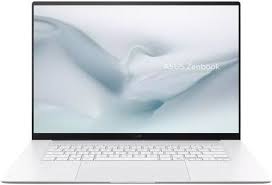
Our favorite premium Windows all-rounder. A gorgeous 16-inch 3K OLED touchscreen pairs with AMD’s Ryzen AI 9 platform and Radeon graphics for smooth everyday work and light creative tasks. It’s a Copilot+ PC with a slim, beautifully built chassis and strong battery life — a true do-it-all laptop.
The ASUS Zenbook S 16 is the Windows laptop I would choose when I want one premium machine for serious work without carrying a traditional 16-inch workstation. Current configurations pair AMD Ryzen AI processors with a 16-inch 3K OLED 120Hz display, fast LPDDR5X memory, NVMe storage, Wi-Fi 7, and a surprisingly light chassis for the screen size. The large panel gives spreadsheets, browser research, timelines, code, and creative apps more breathing room than a 13- or 14-inch ultraportable.
What makes it compelling is balance rather than one benchmark. The OLED screen is excellent for media and visual work, the ports include USB4, USB-A, HDMI, audio, and on many configurations an SD reader, and the chassis stays around the low-three-pound range. I would buy it for a professional who wants premium portability and a large workspace, but not as a substitute for a gaming laptop with a discrete GPU.
Key Features & Specifications
- Processor: Current Ryzen AI 7/9 configurations, including Ryzen AI 9 HX-series options.
- Display: 16-inch 3K OLED, 16:10, up to 120Hz, wide color gamut.
- Memory: Common premium configurations include 24GB or 32GB LPDDR5X.
- Storage: Up to 1TB or 2TB PCIe 4.0 NVMe SSD depending on configuration.
- Ports: Two USB4 Type-C, USB-A, HDMI, audio; SD card reader on selected configurations.
- Mobility: About 3.3 lb in current U.S. configurations, unusually light for a 16-inch laptop.
Pros
- Large 16-inch OLED workspace without workstation weight.
- Strong CPU performance for productivity, coding, multitasking, and creative work.
- Excellent 3K 120Hz display for text, media, and visual content.
- Useful mix of modern and legacy ports.
- Premium build and strong portability for the size.
Cons
- Integrated graphics are not the right choice for serious AAA gaming.
- Soldered memory limits future RAM upgrades.
- Premium configurations can become expensive.
Final Verdict: The Zenbook S 16 is my best all-round Windows pick for someone who wants a large premium screen, strong productivity performance, and real portability. Choose a gaming or workstation laptop instead if your workload depends on a powerful discrete GPU.
If that is your budget, our gaming laptops under $500 guide explains when local gaming and cloud gaming make more sense.
2. Microsoft Surface Laptop 7th Edition – Best for Battery Life & Everyday Business
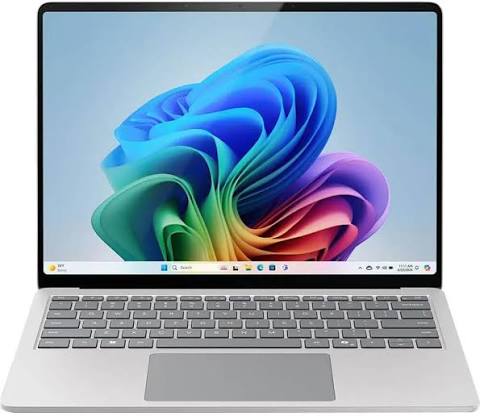
The one to beat for everyday productivity. Its Snapdragon X-series chip (a Copilot+ PC) delivers fast, quiet performance with genuinely all-day battery life. The 13.8-inch PixelSense touchscreen is crisp and bright, and the aluminum build feels every bit as premium as the price suggests.
The 13.8-inch Surface Laptop 7th Edition is one of the cleanest examples of what Windows on Arm gets right: long battery life, instant-feeling everyday responsiveness, a bright 3:2 touchscreen, good cameras and microphones, and a quiet ultraportable design. Snapdragon X Plus and X Elite configurations pair well with Office, browser work, Teams, Zoom, writing, research, and the growing number of Arm-native Windows applications.
The caveat is software architecture. Windows 11 can emulate most x86 and x64 apps through Prism, and the compatibility story is dramatically better than early Arm PCs, but software or peripherals that require non-Arm drivers can still fail. I recommend the Surface Laptop for users whose software is known to work on Arm, not for someone buying blind for a specialized legacy workflow.
Key Features & Specifications
- Processor: Snapdragon X Plus or Snapdragon X Elite on consumer 7th Edition models.
- Display 13.8-inch PixelSense Flow touchscreen, 2304 x 1536, 3:2, up to 120Hz.
- Memory: 16GB or 32GB LPDDR5X options.
- Storage: Removable 256GB, 512GB, or 1TB Gen 4 SSD options.
- Battery: Microsoft rates up to 13 hours of active web use on the 13.8-inch Snapdragon model.
- Weight & ports: About 2.96 lb; two USB-C/USB4, USB-A, headphone jack, and Surface Connect.
Pros
- Excellent battery efficiency for a full Windows laptop.
- Sharp 3:2 touchscreen is ideal for documents and web work.
- Premium keyboard, trackpad, camera, and microphone experience.
- Lightweight, quiet design for travel and meetings.
- Most mainstream Windows apps now run natively or through strong emulation.
Cons
- Driver-dependent or niche legacy software can still have Arm compatibility problems.
- No OLED option on the mainstream 13.8-inch consumer model.
- Port selection is useful but not as broad as some competitors.
Final Verdict: I recommend the Surface Laptop 7 for office work, writing, meetings, research, travel, and users who want Windows without giving up Chromebook-like endurance. Verify your essential software and peripherals for Windows on Arm before buying.
3. Lenovo ThinkPad X1 Carbon Gen 13 Aura Edition – Best Business Laptop
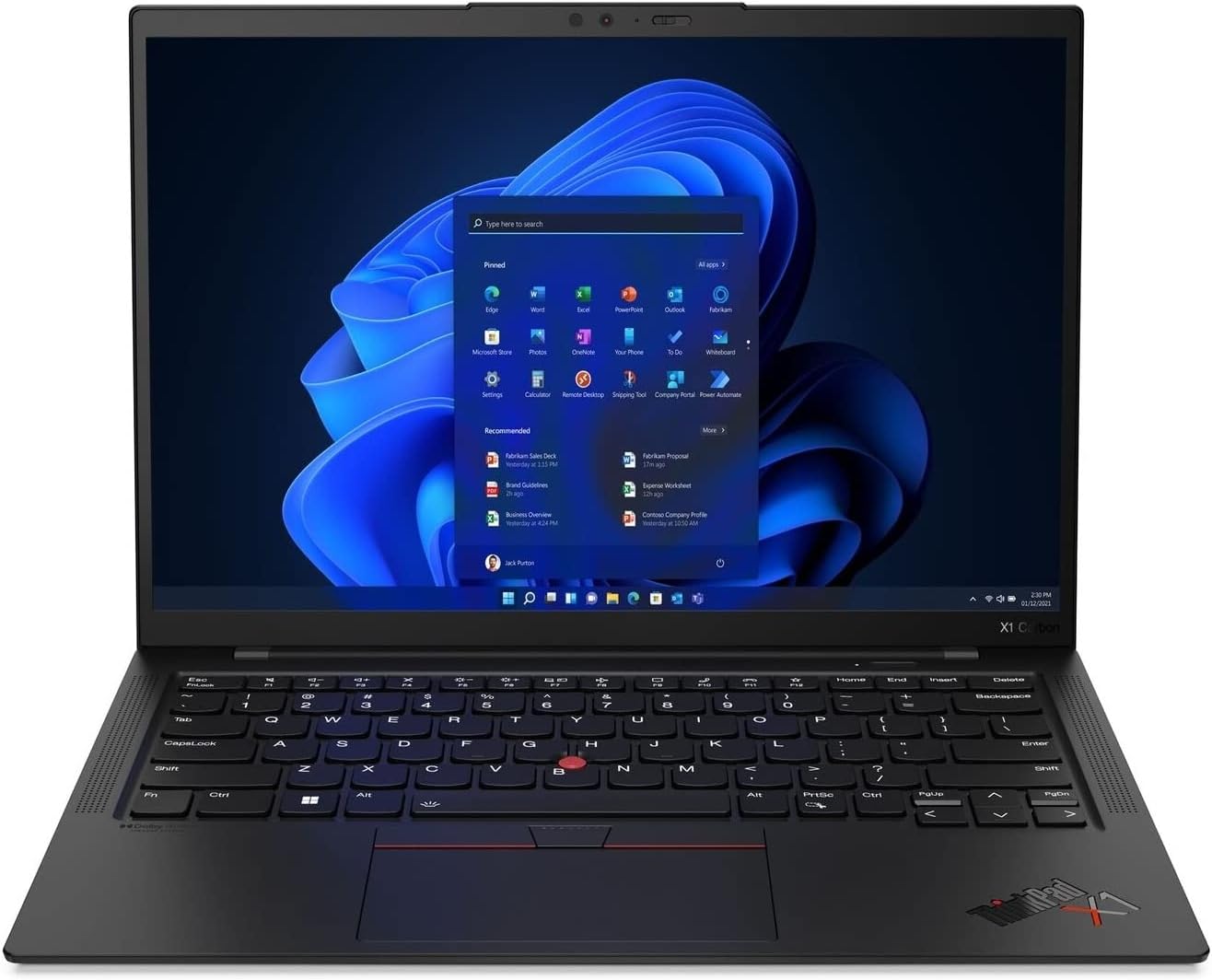
The go-to for professionals who type all day. This Aura Edition is the lightest X1 Carbon yet at around 2.2 lb, with Intel’s Core Ultra 7 (258V) inside and a sharp 14-inch 2.8K OLED option. You still get the legendary ThinkPad keyboard, business-grade security, and MIL-spec durability.
The ThinkPad X1 Carbon Gen 13 Aura Edition is the Windows pick I trust most for a buyer who values business usability over flashy consumer design. Current configurations offer Intel Core Ultra Series 2 processors, up to 32GB or more depending on SKU, fast NVMe storage, Wi-Fi 7, a strong port selection, Windows 11 Pro options, and the ThinkPad keyboard and TrackPoint system that still make long work sessions comfortable.
The standout number is weight: Lenovo has the chassis at about 2.17 pounds, which is exceptionally light for a full business notebook with USB-A, Thunderbolt 4, HDMI, and a 14-inch display. I would choose the low-power IPS screen for maximum battery efficiency or the 2.8K 120Hz OLED for better contrast and color. The trade-off is price, and the soldered RAM means you need to buy enough memory on day one.
Key Features & Specifications
- Processor: Intel Core Ultra 5/7 Series 2 options, including Lunar Lake Copilot+ configurations.
- Display: 14-inch WUXGA low-power IPS or 2.8K OLED 120Hz options.
- Memory: Current configurations include 16GB, 32GB, and selected higher-capacity soldered memory options.
- Storage: PCIe NVMe SSD options up to 2TB depending on configuration.
- Weight: Starting around 2.17 lb.
- Ports: Two Thunderbolt 4/USB4, two USB-A, HDMI 2.1, and 3.5mm audio.
Pros
- Exceptionally light for a premium business laptop.
- Excellent keyboard and practical port selection.
- Strong enterprise security and Windows 11 Pro options.
- Choice of battery-friendly IPS or premium OLED display.
- Good serviceability focus and optional business features.
Cons
- Premium pricing can be difficult to justify for casual use.
- RAM is soldered and not user-upgradable.
- OLED configurations trade some battery efficiency for display quality.
Final Verdict: The X1 Carbon Gen 13 is my business pick for travelers, consultants, executives, writers, and IT-managed fleets that need real Windows compatibility in the lightest practical package. It is overkill for casual browsing, but excellent for professional work.
4. Lenovo Yoga 9i 2-in-1 Gen 10 Aura Edition – Best Windows 2-in-1

The pick if you want a laptop and a tablet in one. A 360° hinge lets you flip it into tent, stand, or tablet mode, and the 14-inch 2.8K OLED touchscreen with pen support is made for sketching and note-taking. Intel’s Core Ultra 7 (258V) keeps everyday work and creative apps running smoothly.
The Yoga 9i 2-in-1 Gen 10 Aura Edition is the Windows machine I would buy when tablet mode, pen input, presentations, note-taking, and normal laptop work all matter. Current 14-inch configurations combine Intel Core Ultra Series 2 processors with a 2.8K OLED touchscreen, 120Hz refresh rate, up to 32GB LPDDR5X memory, a 1TB SSD, Wi-Fi 7, a 5MP IR camera, and an included pen on selected SKUs.
It is not a budget student convertible; it is a premium 2-in-1 for someone who will actually use the hinge. The OLED panel is excellent for media and handwritten work, while the Windows desktop ecosystem means you are not giving up full Office, creative apps, or local software when you fold it into tablet mode. I would skip it if you never touch the screen because a standard clamshell gives you better value.
Key Features & Specifications
- Processor: Intel Core Ultra 7 258V and other current Series 2 options.
- Display: 14-inch 2.8K OLED touchscreen, up to 120Hz, HDR support.
- Memory & storage: Up to 32GB LPDDR5X and 1TB PCIe SSD in current premium configurations.
- Pen: Lenovo pen support; selected U.S. configurations include the pen.
- Camera: 5MP IR camera with privacy shutter and Windows Hello support.
- Connectivity: Wi-Fi 7, Bluetooth 5.4 and modern USB-C connectivity.
Pros
- Excellent OLED touchscreen for notes, media, and creative work.
- True 2-in-1 versatility without giving up Windows desktop software.
- Strong processor, memory, and storage options.
- Good webcam and biometric sign-in for hybrid work.
- Premium build and pen support.
Cons
- Expensive if you only need a normal clamshell laptop.
- Glossy OLED screen can reflect light in bright rooms.
- Soldered memory limits future upgrades.
Final Verdict: The Yoga 9i is the Windows 2-in-1 I would choose for students, consultants, creators, and note-takers who genuinely use touch and pen input. If tablet mode is not part of your workflow, spend the same money on a lighter clamshell or more powerful GPU.
5. ASUS Zenbook 14 OLED (UX3405) – Best Value Premium Ultraportable
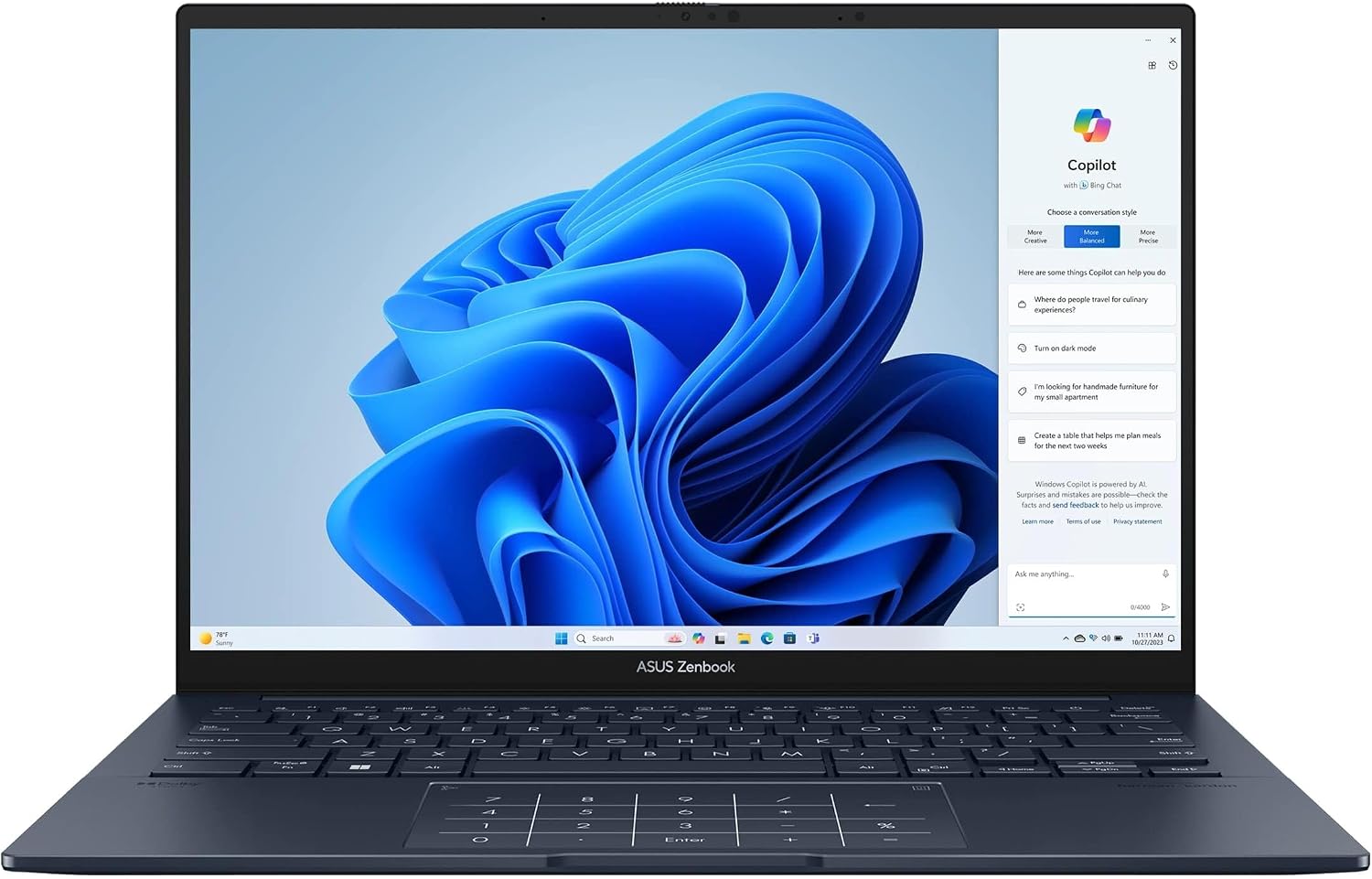
A whole lot of laptop for the money. The 14-inch 2.8K OLED display looks far pricier than it is, and Intel’s Core Ultra keeps everyday tasks quick. At around 2.6 lb with long battery life, it’s the value pick for anyone who wants a premium screen without a premium price.
The Zenbook 14 OLED is the smaller Windows laptop I recommend when the buyer wants premium display quality, useful ports, low weight, and strong everyday performance without moving into the most expensive business tier. Current UX3405 configurations offer Intel Core Ultra processors, up to 32GB memory, up to 1TB SSD storage, a 14-inch OLED display that can reach 3K and 120Hz, and a 75Wh battery.
At around 2.8 pounds depending on configuration, it travels easily but still gives you Thunderbolt 4, USB-A, HDMI, and an audio jack. That combination makes it more practical than many ultra-thin laptops that require a hub for basic desk work. I would choose it for students, professionals, writers, and general creative work, but the integrated GPU is not meant for high-end gaming.
Key Features & Specifications
- Processor: Intel Core Ultra 5/7/9 options depending on current configuration.
- Display: 14-inch OLED; configurations include up to 3K 120Hz panels.
- Memory: Up to 32GB LPDDR5X.
- Storage: Up to 1TB PCIe 4.0 NVMe SSD.
- Battery & weight: 75Wh battery; around 2.8 lb depending on configuration.
- Ports: Two Thunderbolt 4, USB-A, HDMI 2.1, and 3.5mm audio.
Pros
- Excellent OLED display in a compact chassis.
- Very light for a full-featured Windows laptop.
- Strong everyday performance and memory options.
- Useful port selection without relying on a dongle.
- Good balance of premium feel and value.
Cons
- Integrated graphics limit serious gaming and heavy 3D work.
- RAM is soldered on most configurations.
- OLED can use more power than lower-resolution IPS alternatives.
Final Verdict: The Zenbook 14 OLED is my value-oriented premium Windows pick for buyers who want a light machine that still feels high-end. It offers a better balance of display, ports, performance, and portability than many thinner but less practical ultraportables.
Windows Laptop Comparison: Which of the 5 Fits You?
The five Windows picks above are deliberately different. The Zenbook S 16 prioritizes a large premium display, Surface Laptop 7 focuses on endurance and simplicity, the X1 Carbon is built around business portability, Yoga 9i adds convertible flexibility, and Zenbook 14 OLED aims for premium value in a smaller chassis.
Use the bullets first, then the table as a final reference. I would not choose between these models from processor name alone because screen size, ports, software architecture, weight, and form factor will affect daily use more.
- Best all-rounder: ASUS Zenbook S 16 for a large display and premium productivity.
- Best battery-first ultraportable: Surface Laptop 7th Edition if your software works well on Windows on Arm.
- Best business machine: ThinkPad X1 Carbon Gen 13 Aura Edition.
- Best 2-in-1: Lenovo Yoga 9i Gen 10 Aura Edition.
- Best compact premium value: ASUS Zenbook 14 OLED.
| Model | Display | Platform | Weight/Class | Best For |
|---|---|---|---|---|
| ASUS Zenbook S 16 | 16″ 3K OLED 120Hz | AMD Ryzen AI | ~3.3 lb | Large-screen premium productivity |
| Surface Laptop 7 | 13.8″ 3:2 touch 120Hz | Snapdragon X | ~2.96 lb | Battery + office/travel |
| ThinkPad X1 Carbon Gen 13 | 14″ IPS/OLED | Intel Core Ultra | from ~2.17 lb | Business + portability |
| Yoga 9i 2-in-1 Gen 10 | 14″ 2.8K OLED touch | Intel Core Ultra | Premium convertible | Pen + 2-in-1 work |
| Zenbook 14 OLED | 14″ OLED up to 3K 120Hz | Intel Core Ultra | ~2.8 lb | Compact premium value |
If your priority is gaming, none of these integrated-graphics ultraportables should replace a dedicated gaming laptop. For that use case, start with GearVerdicts’ dedicated gaming-laptop coverage.
Best Chromebooks in 2026
For Chromebooks, I moved the shortlist toward current Chromebook Plus hardware because it gives buyers a more reliable performance floor. These models have enough memory, display quality, webcam capability, and storage to feel like real everyday computers rather than disposable browser devices.
I also include different shapes of Chromebooks: OLED premium, large-screen premium, convertible, value clamshell, and budget touchscreen. Exact processor, memory, storage, and touch options vary by SKU.
Chromebook Comparison
Our five Chromebook picks side by side: display, chip, memory, and who each one suits.
| Model | Display | Platform | Memory / Storage | Best For | Our Score | Price | Buy |
|---|---|---|---|---|---|---|---|
| 1Lenovo Chromebook Plus 14 (Gen 10)Best Overall Chromebook | 14″ 1920×1200 OLED | MediaTek Kompanio Ultra 910 | Up to 16GB / 256GB UFS | The best all-round ChromeOS experience with an OLED screen | 9.3/10 | $1,092 | Check Price |
| 2Samsung Chromebook Plus V2Best Compact 2-in-1 with Stylus | 12.2″ 1920×1200 IPS touch | Intel Celeron 3965Y | 4GB / 64GB eMMC | Note-taking and sketching with a built-in, no-charge pen | 8.0/10 | $369 | Check Price |
| 3Acer Chromebook Plus Spin 514Best 2-in-1 Chromebook | 14″ 1920×1200 IPS touch, up to 120Hz | MediaTek Kompanio Ultra 910 | 12GB / 256GB | Flexible tablet, tent, stand, and laptop modes | 8.8/10 | $498 | Check Price |
| 4ASUS Chromebook Plus CX34Best Value Chromebook Plus | 14″ Full HD | Intel Core i3/i5 or Core 3/5 | 8–16GB / 128–256GB+ | Good Chromebook Plus performance for the money | 8.6/10 | $599 | Check Price |
| 5Lenovo IdeaPad Slim 3i Chromebook PlusBest Budget Touchscreen Chromebook | 14″ FHD IPS touch | Intel Core i3-N305 | 8GB / 128GB eMMC | Chromebook Plus performance at a lower price | 8.4/10 | Out of stock | Check on Amazon |
1. Lenovo Chromebook Plus 14 (Gen 10) – Best Overall Chromebook

Lenovo Chromebook Plus 14 (Gen 10)
OLED Display · Chromebook PlusA premium ChromeOS option for browser-based work, studying, and streaming. It pairs a 14-inch WUXGA OLED display with MediaTek’s Kompanio Ultra 910 processor and a quiet, fanless design. Configurations offer up to 16GB of memory and 256GB of UFS storage. Choose it if your everyday apps run in ChromeOS; check compatibility if you rely on Windows software.
Check the listing for the exact memory, storage, and touchscreen configuration. As an Amazon Associate, we earn from qualifying purchases.
The Lenovo Chromebook Plus 14 is the model that most clearly shows how far ChromeOS hardware has moved beyond the old budget-only stereotype. Current configurations use MediaTek’s Kompanio Ultra 910 platform with a 50-TOPS-class NPU, up to 16GB LPDDR5X memory, up to 256GB storage, Wi-Fi 7, a 5MP webcam, and a 14-inch 1920 x 1200 OLED display with strong color coverage.
What I like most is the balance of battery life, display quality, weight, and enough memory to keep many tabs and web apps open without the cheap Chromebook feel. Lenovo rates selected configurations up to 17 hours, and the chassis starts around 2.58 pounds. It is expensive for ChromeOS, but it is the Chromebook I would choose if I wanted ChromeOS as my primary computer rather than a secondary device.
Key Features & Specifications
- Processor: MediaTek Kompanio Ultra 910.
- AI hardware: Integrated NPU rated around 50 TOPS.
- Display: 14-inch 1920 x 1200 OLED, 400 nits, 100% DCI-P3 on current premium configuration.
- Memory & storage: Up to 16GB LPDDR5X and up to 256GB UFS.
- Battery & weight: 60Wh battery; Lenovo rates up to 17 hours; starts around 2.58 lb.
- Connectivity: Wi-Fi 7, Bluetooth 5.4, two USB-C, USB-A, audio.
Pros
- Excellent OLED display for a Chromebook.
- Strong battery-life claim and low weight.
- High-end Chromebook Plus performance with modern AI hardware.
- Better webcam and audio than typical budget Chromebooks.
- Enough RAM for serious browser multitasking.
Cons
- Premium pricing approaches good Windows-laptop territory.
- 128GB-256GB storage is still limited for large local libraries.
- ARM-based ChromeOS can have different Linux/app compatibility than Intel models.
Final Verdict: The Lenovo Chromebook Plus 14 is my overall ChromeOS pick for someone who wants a primary cloud-first laptop, not the cheapest school machine. Its OLED screen, battery focus, low weight, and strong memory options make ChromeOS feel premium.
2. Samsung Chromebook Plus V2 — Compact 2-in-1 Chromebook with Stylus
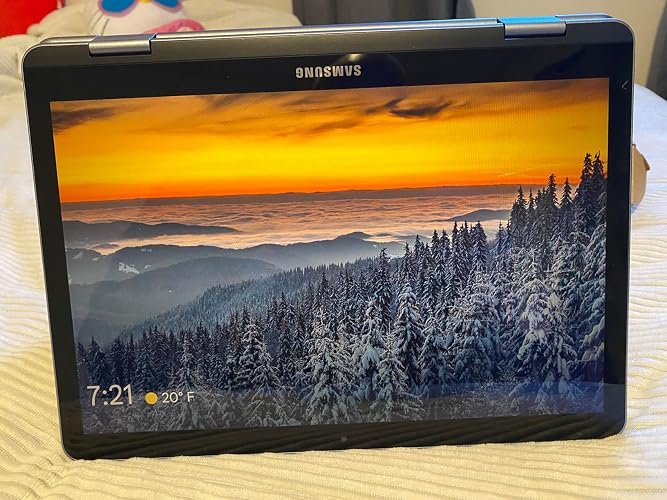
ChromeOS · 2-in-1
Samsung Chromebook Plus V2
Compact convertibleThe 12.2-inch touchscreen and 360° hinge make this a compact option for browsing, documents, and handwritten notes. Its Celeron processor and 4GB of RAM are better suited to light everyday use.
$369 · Check current price
🛒 Buy Now on AmazonThe Samsung Chromebook Plus V2 is a compact 2-in-1 built for browsing, writing, and taking notes. Its 12.2-inch touchscreen folds back into tablet mode, and the included stylus gives you a more natural way to annotate documents or sketch. This listing pairs an Intel Celeron 3965Y with 4GB of RAM, so it makes the most sense for light tasks. The advertised 128GB combines 64GB of built-in eMMC storage and a 64GB SD card; it is not 128GB of internal storage.
Key features
- 12.2-inch, 1920 × 1200 touchscreen with a 360° hinge
- Included stylus for notes, drawing, and touchscreen navigation
- Intel Celeron 3965Y and 4GB RAM for basic ChromeOS tasks
- 64GB eMMC plus a 64GB SD card in the linked configuration
Pros
- Flexible laptop and tablet design
- Sharp screen for its compact size
- Stylus included
- Useful mix of USB-C and USB-A ports
Cons
- Older Celeron processor and only 4GB RAM
- Limited built-in storage; the extra 64GB is an SD card
- Small screen may feel cramped for long work sessions
- Relatively short remaining ChromeOS update window
VerdictThe Chromebook Plus V2 is only worth considering at a low price if you specifically want a small touchscreen Chromebook with a stylus. Its convertible design is still useful, but the processor and 4GB of RAM limit its appeal as an everyday laptop in 2026. Google lists automatic updates for the Chromebook Plus V2 through August 2027, so I would not position it as a long-term “best value” recommendation.
3. Acer Chromebook Plus Spin 514 – Best 2-in-1 Chromebook

A flexible convertible that hits the ChromeOS sweet spot. The 360° hinge and 14-inch WUXGA (1920×1200) touchscreen let you flip between laptop, tablet, and tent modes for notes, media, and light creativity. With an Intel Core 3 chip and Wi-Fi 6E, it’s a versatile everyday Chromebook Plus.
The Acer Chromebook Plus Spin 514 is my convertible pick because it combines current Chromebook Plus performance with a touch-first design. Acer’s latest configurations use the MediaTek Kompanio Ultra 910, 12GB or more LPDDR5X memory depending on SKU, up to 256GB storage, Wi-Fi 7, and a 14-inch 1920 x 1200 touchscreen that can reach 120Hz on current premium models.
The rotating hinge makes ChromeOS especially useful for Android apps, reading, note-taking, presentations, and sofa use, while the keyboard and desktop browser remain available for normal work. I would choose it over a fixed Chromebook if touch matters, but I would not pay extra for the hinge if the laptop will live at a desk in clamshell mode.
Key Features & Specifications
- Processor: MediaTek Kompanio Ultra 910 on current premium configuration.
- AI hardware: Integrated NPU rated around 50 TOPS.
- Display: 14-inch 1920 x 1200 IPS touchscreen; current premium SKU lists 120Hz.
- Memory & storage: 12GB LPDDR5X and 256GB storage on current listed configuration.
- Connectivity: Wi-Fi 7, USB-C, USB-A and ChromeOS connectivity.
- Form factor: 360-degree 2-in-1 design with touch and stylus support on supported configurations.
Pros
- Flexible tablet, tent, stand, and laptop modes.
- Fast current Chromebook Plus platform.
- 120Hz touchscreen on premium configuration.
- Good memory and storage for ChromeOS.
- Strong fit for Android apps, notes, and presentations.
Cons
- Convertible chassis is heavier than the lightest clamshell Chromebooks.
- Premium configurations cost much more than entry-level ChromeOS devices.
- Touch and hinge features add little value if you never use tablet mode.
Final Verdict: The Acer Chromebook Plus Spin 514 is the Chromebook I would pick for students, presenters, and touch-first users who want ChromeOS in more than one form factor. Its value comes from the convertible design, so buy a clamshell if you will never fold the screen.
4. ASUS Chromebook Plus CX34 – Best Value Chromebook Plus
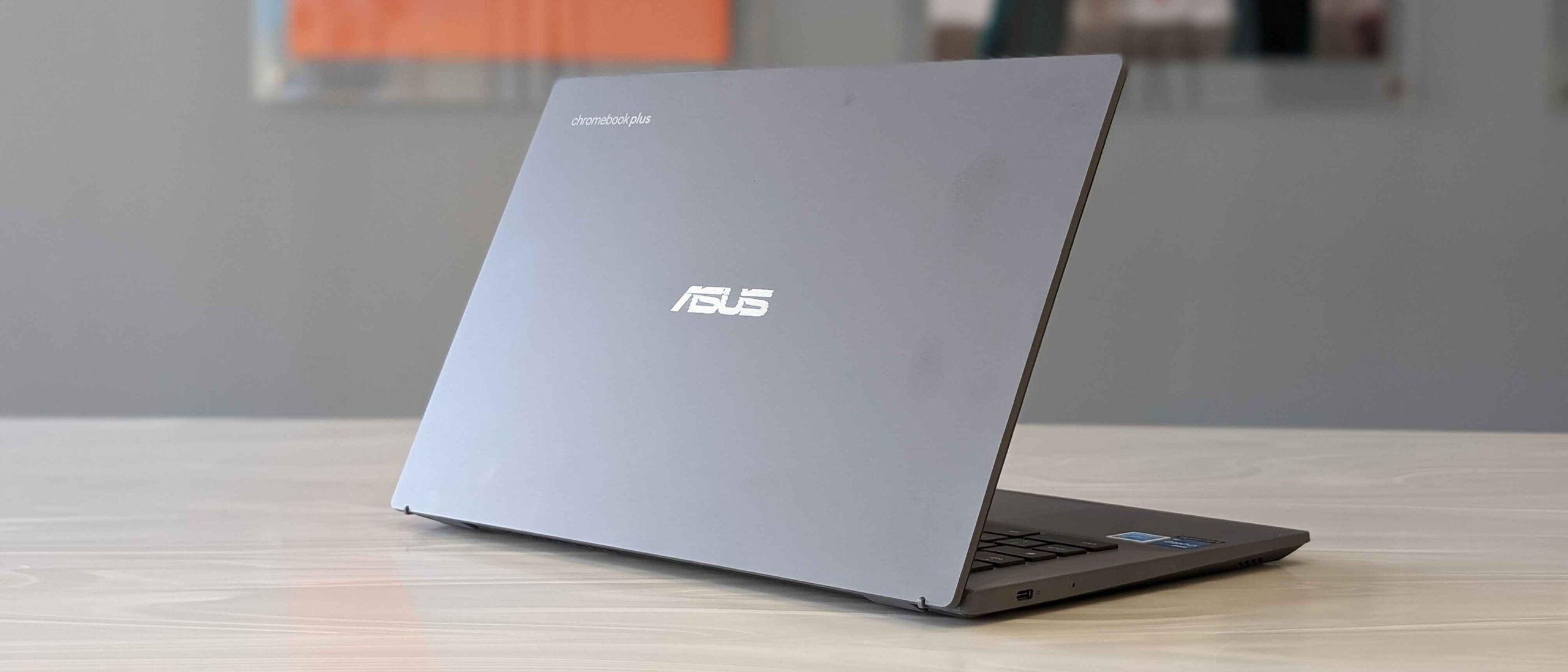
A dependable, full-size Chromebook Plus that gets the basics right. Its Intel Core i3 chip and 8GB of memory handle browsing, docs, and video calls with ease, and the 14-inch FHD screen and comfy keyboard make it a solid pick for students and small businesses on a budget.
The ASUS Chromebook Plus CX34 remains one of the easiest ChromeOS models to recommend because ASUS sells it in a wide range of Intel configurations with a practical 14-inch Full HD display, 8GB or 16GB memory options, and storage ranging from 128GB upward depending on SKU. The chassis also includes more ports than many thin competitors.
I particularly like it for small-business users and students who connect monitors, flash drives, chargers, and accessories because current configurations can include two USB-C ports, two USB-A ports, HDMI, and an audio jack. The display is not as premium as Lenovo’s OLED, but the CX34 makes more sense if you want Chromebook Plus performance without paying for premium screen technology.
Key Features & Specifications
- Processor: Current configurations include Intel Core i3/i5 and newer Core 3/Core 5 options.
- Display: 14-inch Full HD anti-glare, touch or non-touch depending on SKU.
- Memory: 8GB or 16GB LPDDR5 depending on configuration.
- Storage: 128GB or 256GB UFS common; selected configurations offer larger SSD storage.
- Ports: Two USB-C, two USB-A, HDMI, and 3.5mm audio.
- Camera: 1080p-class camera options with privacy shutter on current Chromebook Plus configurations.
Pros
- Good Chromebook Plus performance for the money.
- Excellent port selection for school and office accessories.
- 8GB/16GB memory choices give useful headroom.
- Available in several configurations and colors.
- Simple clamshell design with fewer expensive extras.
Cons
- Base display is functional rather than premium.
- Configuration names can be confusing because CPUs and storage vary widely.
- Battery life varies by exact SKU and is not the headline strength.
Final Verdict: The ASUS CX34 is my value Chromebook Plus recommendation for buyers who want strong everyday ChromeOS performance and real ports without paying OLED or 2-in-1 prices. Verify the exact CPU, RAM, and storage because the model family includes several configurations.
5. Lenovo IdeaPad Slim 3i Chromebook Plus – Best Budget Touchscreen Chromebook

The easiest, most affordable way into a capable Chromebook Plus. Intel’s Core i3-N305 keeps everyday browsing, docs, and streaming smooth, and the thin-and-light body with a touchscreen is easy to carry to class or the couch. For students and second-laptop shoppers, it’s hard to beat the value.
The IdeaPad Slim 3i Chromebook Plus is the lower-cost ChromeOS model I would choose when I still want the Chromebook Plus baseline instead of dropping into 4GB RAM and low-resolution budget hardware. Lenovo’s current 14-inch configuration pairs an Intel Core i3-N305 with 8GB LPDDR5 memory, 128GB storage, a Full HD IPS touchscreen, Wi-Fi 6E, a backlit keyboard, and a 1080p webcam.
That is enough for school, browser-heavy business work, Google Workspace, Microsoft 365 web apps, video calls, streaming, and normal multitasking. The i3-N305 is not a workstation processor, and 128GB storage reinforces the cloud-first nature of the machine, but this is exactly the tier where ChromeOS makes sense: modest hardware that still feels responsive for the intended workload.
Key Features & Specifications
- Processor: Intel Core i3-N305.
- Display: 14-inch FHD IPS touchscreen, 300-nit class, 100% sRGB on current U.S. configuration.
- Memory: 8GB LPDDR5.
- Storage: 128GB eMMC.
- Connectivity: Wi-Fi 6E and Bluetooth 5.3.
- Camera & keyboard: 1080p webcam with dual microphones and a backlit keyboard.
Pros
- Meets Chromebook Plus performance baseline at a lower price.
- Touchscreen adds flexibility for students and Android apps.
- 8GB RAM is much better than old 4GB budget Chromebooks.
- Good 1080p webcam for school and meetings.
- Simple, lightweight cloud-first machine.
Cons
- 128GB eMMC is slower and smaller than a typical Windows NVMe SSD.
- Processor is designed for everyday productivity, not heavy creative workloads.
- Local storage fills quickly if you keep large media libraries.
Final Verdict: The IdeaPad Slim 3i Chromebook Plus is my budget pick for students and everyday users who want ChromeOS without dropping below the modern performance floor. It is strongest as a cloud-first touchscreen laptop, not a local-storage or heavy-production machine.
Chromebook Comparison: Which of the 5 Fits You?
The Chromebook picks cover five different priorities. Lenovo’s Plus 14 is the premium all-rounder, Samsung gives you the largest premium display at very low weight, Acer adds a 2-in-1 touchscreen, ASUS keeps the price and ports practical, and Lenovo’s Slim 3i is the budget Chromebook Plus option.
The table below is a final shortcut after the detailed reviews. I would still choose by form factor and software needs before processor name, because ChromeOS performance is already strong on every Chromebook Plus model here.
- Best overall: Lenovo Chromebook Plus 14 Gen 10.
- Best big-screen premium: Samsung Galaxy Chromebook Plus.
- Best 2-in-1: Acer Chromebook Plus Spin 514.
- Best value: ASUS Chromebook Plus CX34.
- Best budget touchscreen: Lenovo IdeaPad Slim 3i Chromebook Plus.
| Model | Display | Platform | Memory / Storage | Best For |
|---|---|---|---|---|
| Lenovo Chromebook Plus 14 | 14″ WUXGA OLED | Kompanio Ultra 910 | up to 16GB / 256GB | Premium all-rounder |
| Samsung Galaxy Chromebook Plus | 15.6″ FHD AMOLED | Intel Core 3 | 8GB / 256GB | Large-screen portability |
| Acer Chromebook Plus Spin 514 | 14″ WUXGA touch, up to 120Hz | Kompanio Ultra 910 | 12GB / 256GB | 2-in-1 and touch |
| ASUS Chromebook Plus CX34 | 14″ FHD | Intel Core family | 8-16GB / 128-256GB+ | Value + ports |
| Lenovo Slim 3i Chromebook Plus | 14″ FHD touch | Intel Core i3-N305 | 8GB / 128GB | Budget Chromebook Plus |
If your budget drops below Chromebook Plus territory, I would rather buy a well-supported used or sale model with 8GB RAM than a brand-new 4GB Chromebook that already feels cramped. GearVerdicts also has a cheap laptops under $100 guide for buyers considering extreme-budget hardware.
Chromebook vs Windows: Common Buying Mistakes to Avoid
Most bad purchases happen because buyers compare hardware before checking software. The laptop can have a beautiful OLED screen and still be wrong if one essential program, peripheral, or offline workflow does not fit the operating system.
- Calling every Chromebook ‘just a browser’. Modern ChromeOS can run web apps, many Android apps, and Linux development tools on supported devices.
- Assuming a Chromebook is useless offline. Offline Gmail, Docs, Keep, local files, downloaded media, and selected apps can work, although cloud-first workflows still benefit from internet access.
- Buying Windows on Arm without checking drivers. Most apps run well natively or through emulation, but some driver-dependent software and peripherals still require Arm64 support.
- Buying an old Chromebook without checking update support. Current platforms receive long support, but used and clearance devices can have very different remaining update schedules.
- Choosing by RAM and CPU alone. The operating system and app ecosystem can matter more than raw benchmark performance.
- Assuming all Windows laptops have poor battery life. Modern Snapdragon, Intel Lunar Lake, and efficient AMD machines can deliver excellent endurance.
- Assuming all Chromebooks are cheap. Premium OLED and AI-focused Chromebook Plus models can cost as much as good Windows ultraportables.
- Buying a Chromebook for Windows-only coursework. Engineering, CAD, statistics, media production, or specialized development classes can require Windows software.
- Buying Windows for a browser-only life without considering ChromeOS. If your workflow is genuinely cloud-first, you may be paying more for software compatibility you never use.
- Ignoring storage type and capacity. 128GB eMMC, 256GB UFS, and a 1TB NVMe SSD create very different local-file experiences even when the laptop feels fast in a browser.
My final pre-purchase check is simple: write down the software, files, peripherals, and offline tasks you use every week. If the new machine handles every one of them, then compare price and hardware.
Final Verdict: Chromebook or Windows Laptop in 2026?
After years on Windows and real time with ChromeOS, my conclusion is more nuanced than ‘browser life equals Chromebook, real work equals Windows.’ Chromebooks can now handle serious browser-based work, Android apps, Linux development, offline documents, and premium hardware. For the right user, ChromeOS is a complete laptop platform rather than a compromise.
Windows still wins when the job is unpredictable. If clients, employers, school software, games, drivers, local files, or specialized desktop applications can throw anything at the machine, Windows 11 gives you the broader safety net. I still run my own business on Windows for that reason.
Buy a Chromebook because your workflow is intentionally cloud-first. Buy Windows because you need the wider desktop ecosystem. That decision will matter longer than the processor generation or the sale price.
Frequently Asked Questions
Is a Chromebook better than a Windows laptop?
Neither is universally better. A Chromebook is better for buyers with a browser-first, cloud-first workflow who value simplicity and battery efficiency. Windows is better when full desktop software, native gaming, large local storage, specialized drivers, or broader hardware compatibility matter.
Can a Chromebook replace a Windows laptop?
Yes if your essential work fits web apps, Android apps, and supported Linux tools. No if you depend on a Windows-only desktop application, specialized driver, local PC gaming, or advanced desktop workflow.
Can a Chromebook run Microsoft Word and Excel?
Yes through Microsoft 365 web apps. Microsoft does not support installing the Windows or Mac desktop versions of Microsoft 365 on a Chromebook, so desktop-only features, macros, add-ins, and heavy Excel workflows can be limiting.
Can a Chromebook work without internet?
Yes for prepared offline tasks such as Gmail, Google Docs, Keep, local files, downloaded media, and compatible apps. Some cloud services and Microsoft 365 web files still require an internet connection.
Can Chromebooks run Android apps?
Many current Chromebooks support Android apps through Google Play, although support can vary by device and managed school or work policy.
Can you code on a Chromebook?
Yes. Supported Chromebooks can enable a Linux development environment with command-line tools, editors, IDEs, packages, and Git. Windows still supports a broader range of native developer tools and specialized SDKs.
How long do Chromebooks receive updates?
Google’s current ChromeOS policy provides 10 years of automatic updates from the platform release date. Always check the exact device’s update schedule before buying used or old inventory.
Is Windows better for gaming?
Yes for native PC gaming. Windows supports the broad PC game ecosystem, discrete GPUs, anti-cheat, local installs, mods, and more accessories. Chromebooks are better suited to browser, Android, and cloud gaming.
Is a Chromebook good for college?
It can be excellent for browser-based coursework, writing, research, Google Workspace, and many online classes. Students in engineering, architecture, statistics, design, media, and software programs should check required applications before buying.
Are Chromebooks more secure than Windows laptops?
ChromeOS is easier to keep secure for many casual users because of sandboxing, verified boot, and automatic updates. Windows 11 also has strong built-in security through Defender, Secure Boot, TPM, Windows Hello, and enterprise tools. Safe use and updates still matter on both.
Should I buy a Chromebook Plus instead of a regular Chromebook?
For a primary laptop in 2026, Chromebook Plus is usually the safer performance target because it requires stronger CPU, RAM, storage, webcam, and display specifications. A basic Chromebook can still be fine for very light use.
What is the biggest downside of a Chromebook?
Software compatibility is the biggest limitation. If one critical Windows desktop application or hardware driver has no ChromeOS alternative, the Chromebook can be the wrong purchase even if everything else about it is excellent.

