
Cheap Laptops Under $100: Best Options, What to Expect & Smart Buying Tips

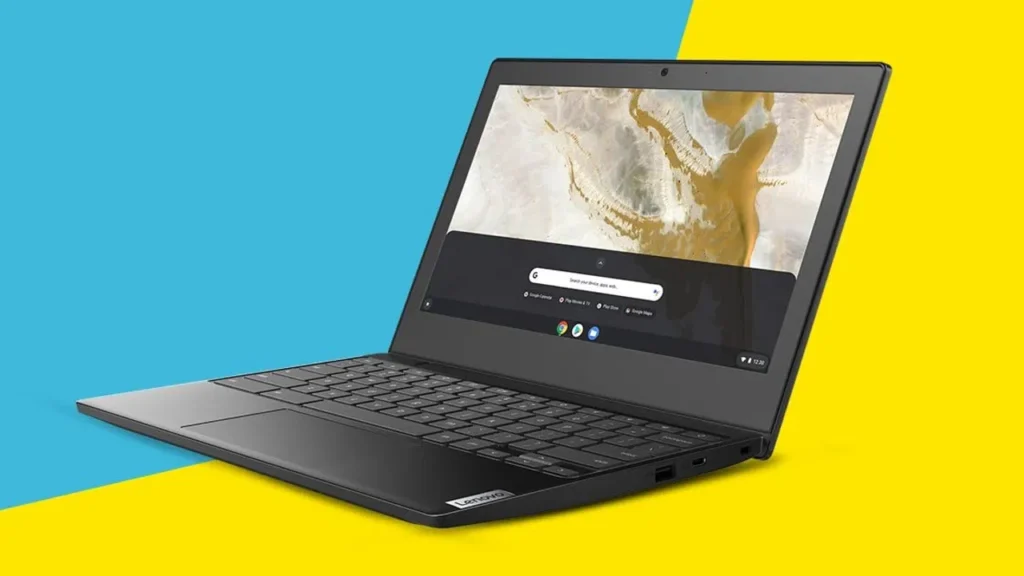
Looking for a good laptop without spending a fortune feels nearly impossible at times, especially with prices constantly rising.
But did you know it’s possible to get a working laptop for under $100? Crazy right? I did some digging into this ultra-budget category. While there are downsides, you can still find pretty useful computers. This piece focuses on cheap laptops under $100 – their capabilities, which ones might be worthwhile, and how to avoid buying a lemon.
Key Takeaways
- You can find functional laptops for under $100, but managing expectations is key.
- Chromebooks are often the best bet in this price range due to their simpler operating systems.
- Refurbished or used Windows laptops can offer more power but come with potential risks.
- Expect basic performance for tasks like web browsing, email, and document editing.
- Buying from reputable sellers and checking return policies are smart moves when shopping for cheap laptops under $100.
What to Expect From a Laptop Under $100
So, you’re checking out laptops that won’t break the bank — less than $100. Don’t expect top-of-the-line gear; it’s budget stuff. You’ve gotta be okay with giving up some specs. It’s kind of like when you buy a second-hand car: expectations should be flexible.
Here’s what you typically find when looking at these cheap laptops:
- Performance: Don’t expect to run the latest games or edit videos. These machines are best for basic stuff like browsing the web, checking emails, writing documents, and maybe streaming some shows. Multitasking can be a real struggle, so having a bunch of tabs open might slow things down considerably.
- Storage: You’ll often find very limited storage space, sometimes less than 64 GB. This means you’ll need to be smart about what you save and might need to rely on cloud storage or an external drive for bigger files. It’s a far cry from the ample storage you might be used to.
- Build Quality: These laptops are usually made of plastic. They might feel a bit flimsy, and you have to be careful not to bend them too much. Keyboards can sometimes feel mushy, and trackpads might not be the most responsive. It’s not the premium feel you get with pricier models, but it gets the job done.
- Screen: The displays are often not the sharpest. You’ll likely see lower resolutions (like 1366×768) which means text and images won’t look as crisp. Viewing angles can also be limited, so the picture might look off if you’re not looking directly at the screen.
- Operating System: Many of these will be Chromebooks, which run Chrome OS. This is great for web-based tasks but might not be suitable if you need specific Windows or macOS software. Some might come with Windows, but they often have a lot of pre-installed software, or ‘bloatware,’ that can slow things down even further. You might want to look into cleaning up your Windows installation if you go that route.
Basically, a laptop under $100 is a tool for specific, light tasks. It’s not meant to replace a more powerful computer, but it can be a perfectly good secondary device or a starter machine for someone who just needs the internet and basic productivity tools. You have to manage your expectations, but finding a decent one is possible if you know what you’re getting into.
Best Cheap Laptops Under $100 in 2026
Looking for a good laptop under $100 is pretty tough, but I found a couple of options that might catch you off guard. Just know these won’t be speedy by any means.
You’re looking at basic stuff like browsing the web and easy homework tasks. I checked out Chromebooks and used Windows laptops since those appear to be our best bets on such a strict budget.
1. HP Chromebook 11 – Best Overall Under $100
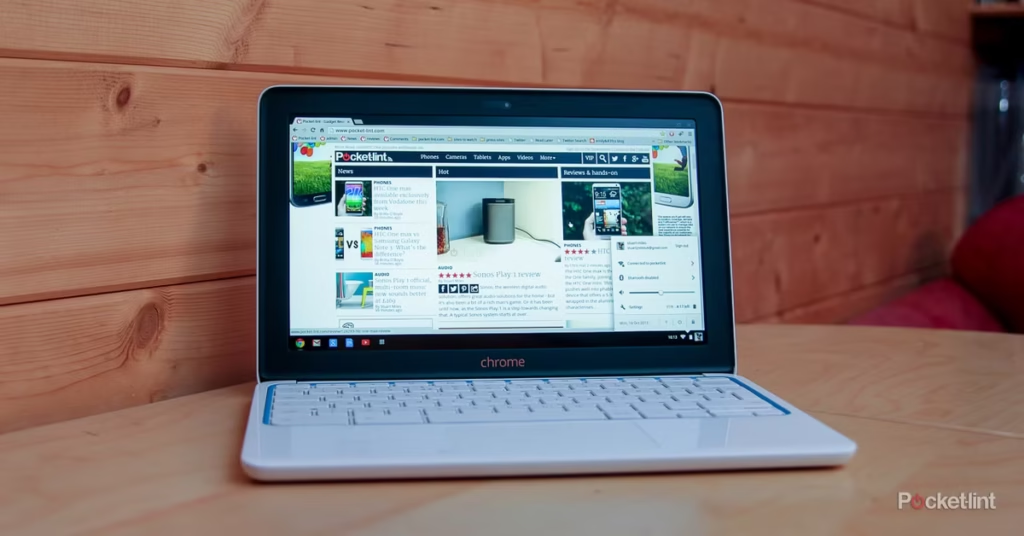
Thinking about getting the most out of my money, the HP Chromebook 11 is often at the top of my list. It handles everyday tasks just fine. Running Chrome OS, it’s quite lightweight and perfect for web-based jobs.
Browsing the internet, checking emails, and using Google Docs are no issue at all. If you’re researching connected home technology, you can also learn what a smart lock is and how smart home devices integrate with everyday computing.
HP Chromebook 11 – Best Overall Under $100
If you’re looking for an affordable Chromebook for browsing, emails, online classes, and Google Docs, the HP Chromebook 11 is a fantastic budget-friendly option. Its lightweight design, portability, and long battery life make it ideal for students and everyday users.
✔ Excellent for students and casual users
✔ Great battery life for all-day use
✔ Ideal for web browsing and Google Workspace
✔ One of the best Chromebook values under $100
Pros
- Excellent protection against drops, bumps, and daily wear and tear
- Durable shock-absorbing design ideal for students and children
- Helps prevent costly Chromebook repairs or replacements
- Secure clip-on fit that stays attached even after accidental drops
- Textured surface improves grip and reduces the chances of slips
- Integrated stand provides comfortable viewing and typing angles
- Easy access to ports, buttons, and Chromebook features
- Simple and quick installation process
- Great choice for school environments and classroom use
- Available in multiple colors for personalization
Cons
- Adds some extra bulk to the Chromebook
- Not the best option for users who prioritize ultra-thin portability
- Designed primarily for protection rather than aesthetics
- Stand functionality may not be necessary for every user
Final Verdict
The HP Chromebook 11 coupled with the Gumdrop SlimTech Protective Case is perfect for students, parents, and teachers looking for something durable. People who use this combo love how well the case safeguards the device from slips and bumps in the classroom. It could even save heaps of cash on repairs or replacements.
True, the protection makes the Chromebook bulkier. Yet, most folks think it’s totally worth it, especially for kids toting their tech around all day. The case has a handy stand, fits securely, and is built tough. That’s why it’s among the top protective covers out there for the HP Chromebook 11.
Rating: 4.7/5 ⭐
It’s ideal for students, K-12 classrooms, parents, teachers, and anyone aiming to prolong their Chromebook’s life without stressing about mishaps.
2. Lenovo IdeaPad 3 (Refurbished) – Best Windows Option
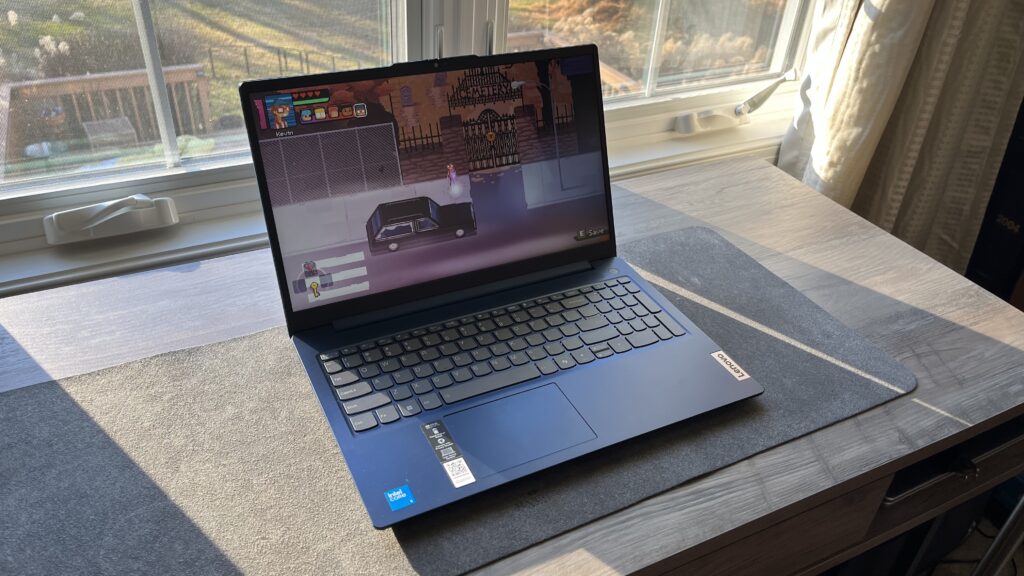
If you really need Windows, try refurbished models. I spotted the Lenovo IdeaPad 3 refurbished for under $100. Refurbished means it was previously owned but cleaned up and fixed.
It’s a great way to get a Windows laptop without the full cost. Make sure to buy from someone reliable that offers a warranty. You’ll get a more traditional laptop experience, unlike what you’d get with a Chromebook.
Pros
- Excellent battery life for all-day productivity and schoolwork
- Lightweight and portable design makes it easy to carry
- Fast performance for multitasking and everyday applications
- Good display quality with a productivity-friendly 16:10 aspect ratio
- Solid build quality that feels durable for a budget-friendly laptop
- Plenty of connectivity options and ports
- Suitable for work, school, web browsing, and media consumption
- Good value for money compared to similarly priced Windows laptops
- Decent hardware security features
- Comfortable for long study or work sessions thanks to the quality display
Cons
- Webcam quality is below average and not ideal for video conferencing
- Built-in speakers produce weak, tinny audio
- Uses a traditional barrel charger instead of a more modern USB-C charging solution
- Battery life may be lower than some newer premium laptops
- Some users reported missing accessories during delivery
- Build quality, while solid, doesn’t quite match Lenovo’s premium ThinkPad lineup
Final Verdict
The Lenovo IdeaPad does a great job balancing performance, portability, and cost, making it awesome for students, remote workers, and regular PC users. People really like how light it is, its long battery life, smooth multitasking, and sturdy build.
It’s not perfect though; the webcam and speakers could be better. But that’s a small issue, and it’s easy to fix with some external gear. Its quick performance, comfy screen, and durable build make it a solid choice in the budget to mid-range category.
If you can stretch the budget, the jump to a $500 gaming laptop is the single biggest value leap in laptops.
This laptop rocks for folks needing a trusted Windows PC for classes, office tasks, web surfing, and other daily stuff. It gets the job done without costing a fortune.
Ideal for: Students, office folk, remote workers, home users, and anyone after a dependable laptop that performs well and is portable without being too pricey.
3. Acer Chromebook 11 – Best for Students
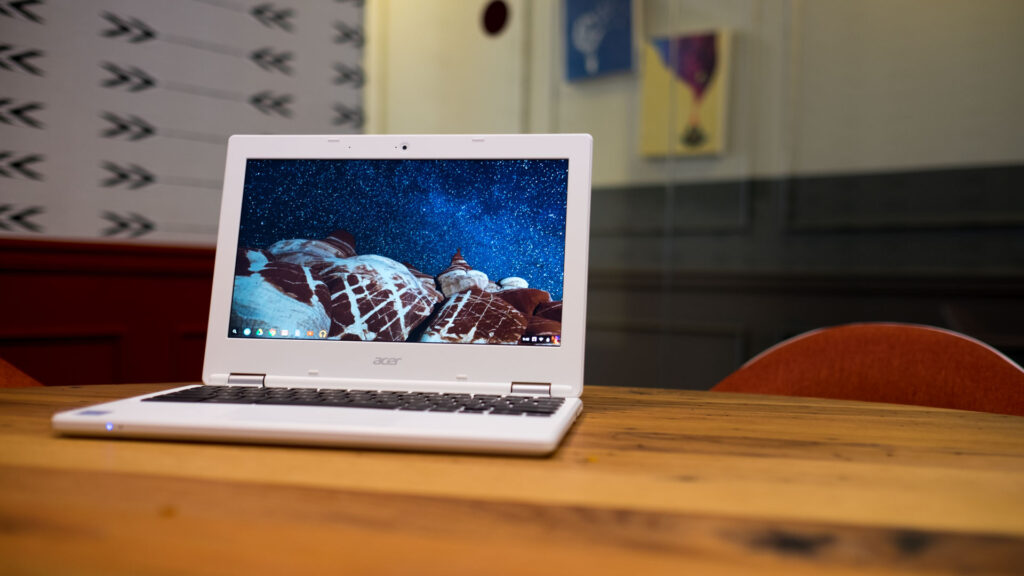
Students with super tight budgets should check out the Acer Chromebook 11. Like its HP counterpart, it runs Chrome OS and excels at homework stuff—writing papers, web searches, and using edu apps.
They tend to be pretty tough too, which is awesome for those times you throw it in a bag. Also, the straightforward Chrome OS means fewer issues with updates and virus worries.
Pros
- Excellent value for money and budget-friendly pricing
- Easy and quick setup using a Google account
- Reliable Chrome OS experience with fewer maintenance issues than traditional Windows laptops
- Good battery life for everyday use and travel
- Lightweight and portable for students and travelers
- Decent display quality for web browsing, emails, and streaming
- Fast access to cloud-based services like Google Drive, Google Docs, and Amazon Music
- Built-in webcam, microphone, HDMI port, USB ports, and SD card reader
- Quiet operation with minimal heat generation
- Great choice for web browsing, emails, online learning, and productivity tasks
Cons
- Limited storage and memory compared to traditional laptops
- Can feel sluggish when running multiple tabs or demanding applications
- Chrome OS has a learning curve for users transitioning from Windows
- No built-in CD/DVD drive
- Keyboard lacks some traditional Windows keys and shortcuts
- Screen quality may not satisfy users expecting premium visuals
- Larger model can feel bulky compared to smaller Chromebooks
- Not ideal for advanced software, gaming, or heavy multitasking
Final Verdict
The Acer Chromebook 11 is a fantastic choice for folks on a tight budget who mostly surf the web. It runs everyday tasks like a breeze—browsing the net, checking emails, working on docs, attending online classes, and using cloud services. People love how easy it is to set up, performs dependably, and boasts great battery life—plus, it’s super affordable.
It’s not built for hardcore tasks that require a powerful Windows laptop, but that’s okay. Its main goal is to offer smooth, hassle-free online activities for those in Google’s universe. New users might need a bit of time getting used to Chrome OS, yet most say it’s worth it.
This Chromebook is perfect for students hitting the books, travelers on the go, people doing light office work, seniors staying connected, or learners hitting remote classes. If you want an inexpensive machine for basic web tasks, the Acer Chromebook 11 fits the bill nicely.
Rating: 4.4/5 ⭐
Best For: Students, travelers, casual users, seniors, remote learners, and those into web-based apps and cloud services.
4. Samsung Chromebook 3 – Best Battery Life
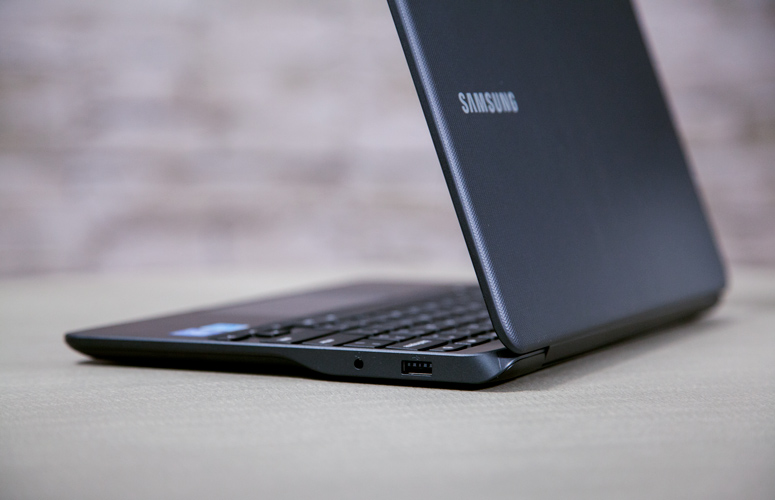
Battery life really matters to me, and the Samsung Chromebook 3 is known for lasting long on a single charge. Perfect if you’re away from power outlets.
Like others in its category, it’s geared towards lighter tasks. Yet, for browsing and simple jobs all day without recharging, it’s a solid choice. No frills here, but it handles what it needs to do quite well.
Pros
- Fast boot-up times and responsive everyday performance
- Excellent battery life, often lasting around 10 hours on a single charge
- Lightweight and highly portable design
- Affordable price point with excellent value for money
- Seamless integration with Google Drive, Google Docs, and other Google services
- Easy-to-use Chrome OS with minimal maintenance requirements
- Compact size makes it ideal for students and travelers
- Expandable storage via microSD card
- Comfortable keyboard despite the smaller form factor
- Reliable performance for web browsing, schoolwork, streaming, and productivity tasks
- Stable operating system with fewer crashes and issues than many traditional laptops
Cons
- Limited internal storage (16GB) may not be enough for users who store many local files
- Display resolution is adequate but not ideal for HD video enthusiasts
- Not suitable for demanding software, gaming, or professional creative workloads
- Some users reported activation and update support issues on older units
- Chrome OS has limitations compared to Windows or macOS
- Older models may no longer receive software updates depending on Google’s Auto Update Expiration (AUE) policy
- Lack of Google Play support on some earlier versions (though later updates addressed this for many users)
Final Verdict
The Samsung Chromebook 3 is still among the top picks for budget Chromebooks for students, casual users, and people who mainly work online. People really like how long the battery lasts and how light it is. It starts up quickly and works great with Google services too. Whether you’re surfing the web, drafting documents, joining online classes, or streaming videos, it runs smoothly and keeps everything rolling for your daily tasks.
Though it’s not meant for hardcore users needing more advanced features, it’s perfect for those just wanting a simple, affordable, and portable device. The Chromebook 3 rocks these qualities, and many folks say it lasts a long time, which makes it a wise buy for those watching their spending.
Just to note, earlier models might not get the newest updates, so it’s smart to look into the update situation before buying one.
Rating: 4.6/5 ⭐
Best for: Students, online learners, travelers, seniors, light internet surfers, and folks just needing a cheap laptop for browsing, emailing, Google stuff, and basic work.
5. Dell Latitude (Refurbished) – Best Build Quality
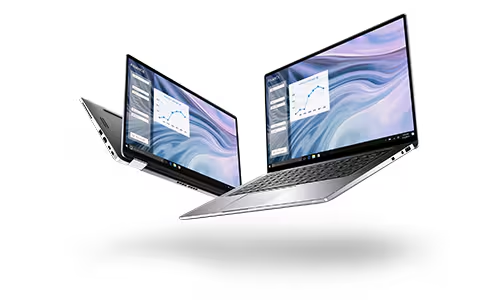
If you care about durability, a used Dell Latitude could fit the bill nicely. These laptops are typically very sturdy, even from previous years.
Although they may not be the most attractive machines around, they last a long time and feel solid every day you use them. So yes, the design isn’t top-notch, but the construction usually beats newer models in the same price range.
Keep in mind, though, that storage space will be more limited, and the processors slower than what you’d get nowadays.
Try to go for at least 4GB of RAM; if you can’t, 2GB is typical in the under-$100 price range. An SSD would offer better performance compared to a standard hard drive, but that’ll be uncommon within your $100 budget.
Pros
- Excellent value for money compared to buying a new business-class laptop
- Fast and responsive performance for work, browsing, and everyday productivity
- Lightweight and portable design
- Touchscreen display included on some units, adding extra versatility
- Easy and quick setup process
- Solid build quality typical of Dell’s Latitude business series
- Good storage capacity and overall system performance
- Arrives well-packaged and often in excellent cosmetic condition
- Compatible with Windows and Linux operating systems
- Reliable functionality for office work, school, and remote work tasks
Cons
- Battery condition can vary significantly between refurbished units
- Some users reported battery health warnings shortly after purchase
- Actual battery life may not always meet expectations
- Minor cosmetic or hardware imperfections (such as dead pixels) may occasionally be present
- Refurbished products can have less consistency than brand-new laptops
- Touchscreen availability may vary depending on the specific unit received
Final Verdict
The Dell Latitude (Refurbished) is great for folks looking for a reliable business laptop without spending a fortune. It delivers on speed, is super light, and sets up easily—plus, it arrives in top shape most of the time. Buyers often get units that look almost brand new and run really well for regular stuff.
But here’s the deal: battery health can differ a lot between units. Some people end up with stellar battery life, while others get batteries that warn them about issues or drain quickly. Thankfully, other than battery problems, pretty much everything else gets rave reviews from customers.
So if you need something affordable for work, studying, browsing, office apps, or even running Linux, this laptop checks all the boxes. It’s a fantastic choice for students, remote workers, pros, Linux fans, small biz owners, and anybody else aiming for dependable, professional performance at a cheap price.
Rating: 4.4/5 ⭐
Recommended For: Students, remote workers, professionals, Linux users, small business owners, and anyone on a budget who needs reliable, business-class computing.
Remember, these laptops are designed for basic computing. Don’t expect to play demanding games or edit high-resolution video. They excel at web browsing, email, word processing, and streaming content. Manage your expectations, and you’ll likely be happy with what you can get for under $100.
What Tasks Can a $100 Laptop Handle?
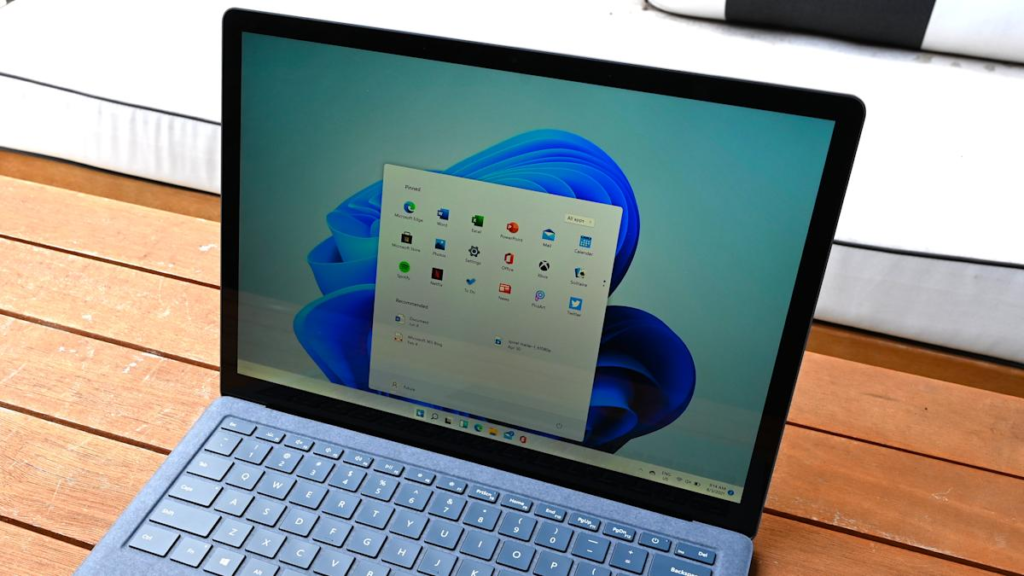
I keep my expectations in check when looking at laptops under $100. While they won’t be speedy, they can still manage basic tasks for everyday use. They’re more like tools made for certain jobs than they are for gaming or heavy tasks.
These laptops work well for browsing, checking emails, and social media. With a few tabs open, you can easily read articles and browse sites without lag.
These affordable laptops are also useful for researching home technology products, including the best smart doorbells without a subscription before making a purchase.
So here’s a quick look at what I usually expect:
- Web Browsing: Checking emails, reading news, browsing social media, online shopping.
- Streaming: Watching videos on platforms like YouTube, Netflix, or Hulu.
- Productivity: Using web-based office suites (like Google Workspace), writing documents, basic spreadsheet work.
- Light Communication: Video calls (though quality might vary), instant messaging.
Don’t push it too far though. Heavy stuff like intense photo editing, video work, or gaming won’t cut it. Plus, expect problems with powerful desktop apps too. Want something smoother for those tasks? Your wallet will need a bit more cash when picking a new laptop.
It’s important to remember that these laptops are built to a price point. Manufacturers make compromises, often in the processor, RAM, or storage. This means that while they can do the basics well, they struggle with anything more complex. Trying to multitask heavily or run multiple demanding programs at once will likely lead to frustration.
I notice that while I can craft documents in Google Docs, editing big spreadsheets with tons of formulas slows things down.
Also, a basic video call works, but a HD multi-person conference call is tough. It boils down to knowing these budget devices’ limits and managing what we expect from them.
Pros and Cons of Buying a Laptop Under $100
I’ve been checking out those super cheap laptops, the ones under $100, and it’s honestly a mixed bag. The price is amazing, though it’s just for a basic device.
Great if you need to go online and are on a tight budget or want something simple for emailing, web browsing, or light word processing.
They’re also handy for travel or for kids starting out – you know, when you don’t want to risk an expensive laptop. Plus, sometimes you can score a refurbished model that’s actually in good condition, making it a clever choice to save money.
You have to be realistic about what you’re getting. These machines aren’t exactly speedy. They often come with slower processors, less storage, and lower memory than we’re used to.
So, everything feels slower, especially when you try to multitask or run something more demanding. Don’t expect to edit videos or play the latest games on these. Also, the build quality might let you down—it can feel flimsy and won’t stand up as well to daily use.
Here’s a quick rundown of what I’ve found:
- Pros:
- Incredibly affordable, making technology accessible.
- Great for basic tasks like web browsing and email.
- Good as a secondary or travel device.
- Refurbished options offer even better value.
- Cons:
- Performance can be slow, especially with multiple applications.
- Limited storage space is common.
- Build quality might not be the most durable.
- Not suitable for demanding software or heavy multitasking.
When you’re looking at laptops in this price range, it’s really about managing expectations. You’re trading raw power and premium features for a very low cost. It’s important to know what you’ll be using it for before you buy, so you don’t end up disappointed. For simple web surfing and document editing, they can be perfectly fine, but anything more complex will likely be a struggle.
It’s also worth mentioning that the operating system makes a big difference. Chromebooks, for example, run well on less powerful hardware since they rely mostly on web apps.
This usually makes them faster for regular tasks than Windows machines with similar specs. When buying, I stick to reputable sellers like major retailers or going direct to the manufacturer, especially for refurbished items. This way, you have a better chance of getting a smooth return if something isn’t right. Refurbished laptops are a good option, but make sure to get one from a trusted source.
Thinking of getting a laptop for under $100? It’ll save you cash, but you may run into issues like slower speeds and outdated features. Yet, if all you need is basic stuff like web browsing or homework, it might be fine. Ready to compare the options? Check out our site for sincere reviews to help you decide!
Wrapping It Up
I checked out some really cheap laptops, under $100, and it’s mixed. You won’t get a powerful device for that price. However, if all you need is to check emails or browse the web, you might find something basic.
Remember, check the details like storage and processor carefully. These won’t cut it for gaming or video editing though. If possible, stretch your budget or go for a refurbished model; it’ll give you a way better experience. It boils down to knowing your needs and setting realistic expectations for what you pay.
Frequently Asked Questions
Can I really get a good laptop for under $100?
Yes, you can find some good laptops for under $100, especially if you look at refurbished or older models. These laptops are great for simple tasks like web browsing, writing papers, or watching videos. Just remember, they might not be as fast or shiny as new ones, but they can still get the job done.
Are refurbished laptops safe to buy?
I think buying a refurbished laptop is a smart choice if you want to save money. Reputable sellers test and fix these laptops before selling them. They often come with a warranty, so you have some protection if something goes wrong. Always buy from trusted stores or the original maker to be safe.
What can I do with a $100 laptop?
With a $100 laptop, I can do basic things like surfing the web, checking email, typing up homework, and streaming videos. These laptops are not made for heavy gaming or editing videos, but they work fine for everyday stuff.
Will a $100 laptop last a long time?
A $100 laptop might not last as long as a new, expensive one. Since they’re older or refurbished, they might need repairs sooner. But if I take care of it and use it for simple tasks, it can last a couple of years.
Is it better to get a Chromebook or a Windows laptop for under $100?
For under $100, I usually find that Chromebooks work better because they need less power to run smoothly. Windows laptops in this price range can be slower unless they have been refurbished well. Chromebooks are great for students and anyone who mostly uses the internet.
What should I check when my laptop arrives?
When my laptop arrives, I open the box carefully and keep all the parts. I turn it on and check if the keyboard, trackpad, and screen work well. If anything feels off, like a sticky key or a dim screen, I contact the seller right away to return or exchange it.