
How to Turn Off Ring Camera: 6 Easy Methods (With and Without the App)


Key Takeaways
I can choose a short pause, a full power-down, or account removal depending on what I need the camera to do.
- Motion Detection, Live View, and Motion Snooze offer different levels of interruption.
- Removing the battery or switching off a breaker cuts power more completely.
- Covering the lens blocks the view but leaves the camera connected.
- Deleting a device and deleting an account are separate actions.
- I should save any recordings I want before removing a device or account.
Key Distinction
Turning off one feature won’t deactivate the whole device. Disabling motion activity is not the same as disconnecting power or Wi-Fi — the camera can still be fully online even with alerts turned off.
Why You Might Want to Turn Off Your Ring Camera
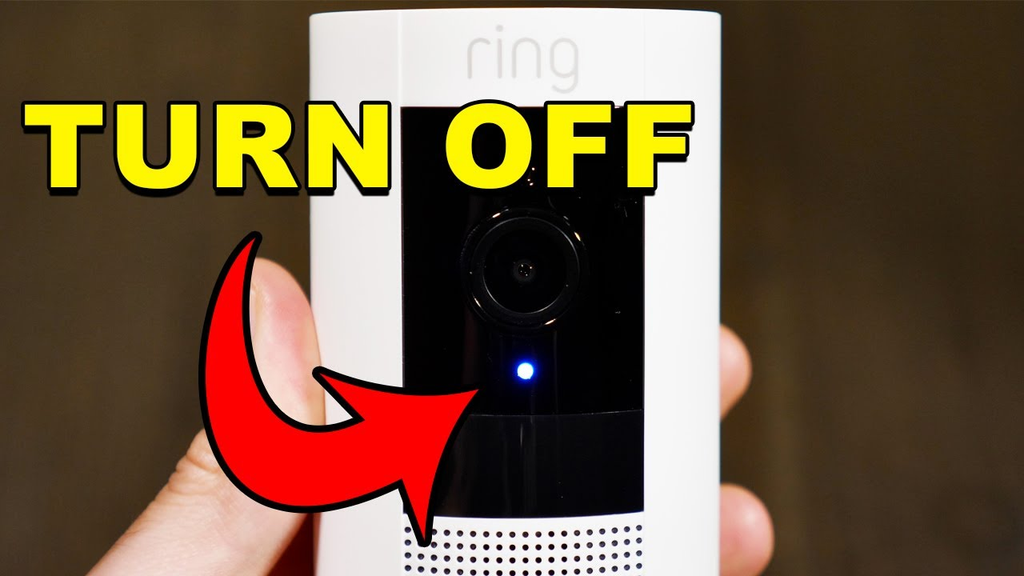
When I search for how to turn off Ring camera, I first decide whether I want privacy for a few minutes or a complete shutdown.
A temporary setting can quiet alerts during a gathering, while removing power is more suitable for maintenance or a longer break. The right method depends on whether the camera is battery-powered, hardwired, or still needed by other people in the household.
Additionally, there might be a need to minimize motion activity alerts, extend battery life or block the camera from recording in a certain location.
Deactivation of a particular feature will not deactivate all the features of the device, so it is necessary to determine what it actually means before using it. Disabling motion activity, for instance, is not quite the same thing as disconnecting the device from power source or Wi-Fi.
In case if I am transferring the device to someone else, I consider this problem as a problem related to transferring the ownership and recordings. Thus, I may consult the Ring app deactivation guide before making any deletions from it if there is a need to maintain access to the available event history.
How to Turn Off a Ring Camera Using the App

Since the app is always the least invasive place to start with, I don’t have to go through the physical hassle of reaching out to my camera’s button to change anything. Based on what result I am aiming for, I can choose to disable motion detection, disable Live View, choose a mode, and/or snooze motion for a specified time.
Turn Off Motion Detection
I go into the settings of my camera device and find the section related to its motion controls. Then, I turn Motion Detection off if I wish the camera to stop being responsive to any movements.
This way, even if there are passers-by, visitors, or animals that create some unwanted movements, they will not cause any alerts from the camera. The device does not get its power off, so I consider it a detection option instead of an entire turning-off procedure.
After making the necessary changes, I wait for a couple of seconds and make sure that the camera works properly through the app again. In case I wish to continue receiving some information, I change the motion settings.
Turn Off Live View
When the issue is related to remote viewing, I do not open Live View but instead go through the privacy and video settings provided by the device itself.
The reason for that is that Live View is viewing-related, while motion detection and recording control something else within the work of the camera. For this reason, I examine these settings individually rather than relying on one switch.
Privacy settings available in the application may also help me in restricting certain features in particular regions. According to the guide regarding Privacy settings by Ring, there are Privacy Zones as well as disabling options for Audio Streaming and Recording that may be useful in the case of more selective restrictions.
Use Modes (Home, Away, Disarmed) to Control Cameras
Using modes provides me with a larger scope of altering the interconnection level of the cameras based on the status of the family.
I pick up the mode appropriate for my actions and check the devices and settings involved prior to depending on it. As there may be an influence on several devices at once, I need to check the camera that needs to be turned off.
The situation when there will be the same procedure performed each time proves to be the most convenient case. Nevertheless, I do not use a mode as an alternative to turning off the power. In case there is a necessity to make the camera completely inactive, I switch to a physical approach.
Use Motion Snooze for a Temporary Pause
When I want to snooze the motion alert temporarily for a small amount of time, Motion Snooze is a great option. I choose the camera, select Motion Snooze, and then select the available time duration within the application.
This is a temporary option and hence is useful for deliveries, guests, and any other busy time when frequent notifications could be a problem.
It is important for me to know before I select either of the two if I am just turning off notifications or turning off recording. Here is a quick comparison:
This helps me avoid the inconvenience of taking out the battery when a mere snooze would have been sufficient. For a more general overview of the techniques used to shut off a Ring Doorbell, I can compare the two types.
How to Turn Off a Ring Camera Without the App
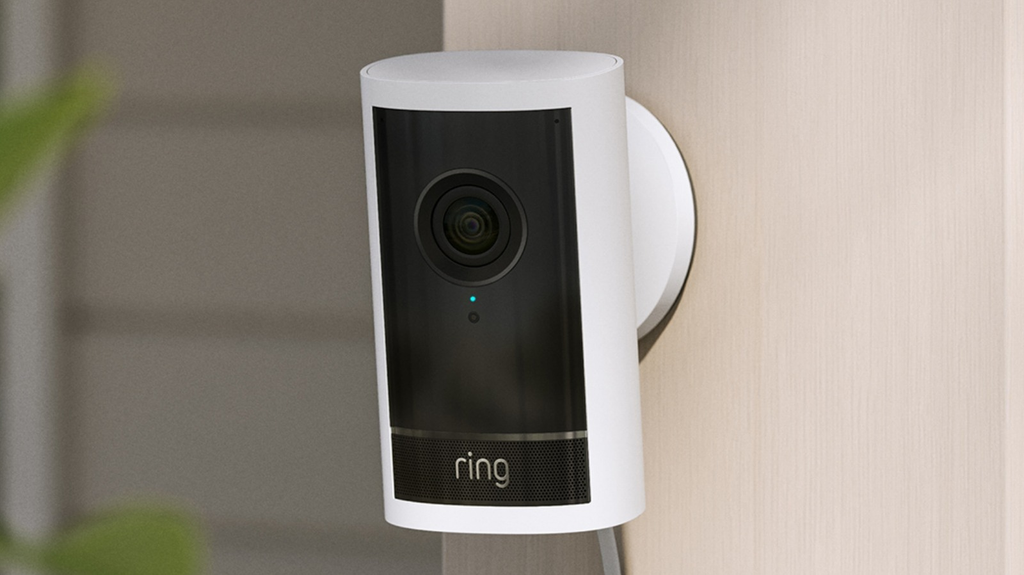
A physical way is more straightforward, but I use it cautiously because it can disrupt any camera functions and would require using electrical tools.
Cameras with battery-powered systems and hardwired cameras have to be dealt with in a different way. I should keep in mind that lens cover or disconnecting Wi-Fi makes the camera less visible or connected.
Remove the Battery (Battery-Powered Models)
For battery-powered Ring devices, I begin by taking off the battery pack based on the mounting specifications of the product. If you’re dealing with a battery-powered doorbell rather than a security camera, our Ring Video Doorbell 4 review can also help you understand how its battery-powered design works.
Once done, the camera will not work until the battery is reinserted into the camera. The battery is stored in a dry place, and I also ensure that the camera is fixed properly when removal of the battery involves dealing with the mount.
The housing is not forced open, and no wiring is pulled where it should not be opened. In case I intend to take ring doorbell offline for some time, I start by checking whether I am dealing with a removable battery version and whether there are any recordings to be saved before removing it.
Cut Power at the Circuit Breaker (Hardwired Models)
In the case of a hardwired Ring camera, I turn off the power supply circuit of the camera if I am sure that I am turning off the right one, but I do not touch exposed wires. For example, a hardwired model such as the Ring Floodlight Cam Wired Plus requires a different power setup from a battery-powered camera.
An appropriate electrician is used where necessary due to ambiguity in the setup. I verify whether power has been cut off by examining the camera and app.
The shutdown by breaker does not just affect the camera notifications; it affects the entire circuit, which implies other lighting or electrical appliances might have their power cut off too, so I inform all the people present about what I have turned off.
Cover the Lens (Quick Fix, Camera Stays Online)
Blocking the lens is another quick method of privacy protection whenever I require stopping the camera’s functionality without deactivating or disconnecting it from the Internet. In this case, I apply a harmless cover which will not press against the lens too tightly.
The device might still be active and handle any motion or networking event; hence, I consider this procedure to be a partial shutdown.
This approach is quite short-term, and therefore appropriate for indoor use during confidential discussions. The cover will be removed with care, and I will review the picture to ensure that it is not damaged by any stains or obstacles. For outdoor protection, I do not use covers that can hold water.
Disconnect Wi-Fi or Block It at the Router
I could interrupt the connection by switching off the appropriate Wi-Fi network or restricting access of the camera through the router; however, doing so might impact others besides the camera if there are any other devices from the house on that particular network.
A specific router rule would be better if I were able to find out the exact device. I do not try to interrupt the wireless signal because of the possibility of disrupting nearby equipment or creating legal/safety hazards.
An unplugged camera will be unable to record and stream live video until the network reconnects. Before employing this technique, I need to make sure that I have the original settings of the network to return to without having to solve any problems.
If I’m worried about someone else deliberately interfering with my camera’s connection, that’s a separate security concern worth addressing with my router’s security settings or ISP, rather than something router-level Wi-Fi controls alone can fix.
How to Delete Your Ring Account

Unlike pausing a camera, deleting my account is irreversible; thus, I do it when I don’t want the service anymore. At first, I consider whether I will miss any subscriptions, devices connected or events recorded that I would like to keep. Moreover, I differentiate deleting account from taking out a single device, since both may bring different results.
First, I download all videos I might want to save before taking out any device or closing my account. It might happen that one device will be simply taken out for transfer while another will be deleted, so there will be no access to event history available. I don’t consider an app uninstalling as deleting since I first check current account settings.
When it is about removing just one doorbell, I don’t close my whole account. Searches like “how to remove ring doorbell,” “how to remove a ring doorbell” or “how to take ring doorbell off” usually mean removal of one device, not an account deletion. The same goes to “how to delete ring account,” so I always check all confirmation screens thoroughly.
Does Turning Off a Ring Camera Show “Offline” to Others?
My status changes will depend on which aspects I have modified. In the case of an active camera that remains powered and connected, it might be available even though I turned off the motion detection or snoozed notifications. Removing the battery, cutting the power, and stopping the network connection may result in an offline or unavailable status.
With shared access, there is an additional aspect since other users will see a changed status, but it will depend on both the app and the connection status. I will not consider an offline status indicator as the sure sign of the camera lens being covered since an offline camera may still be powered and connected.
If the reason behind the changes is privacy, I will let all household members know what I have done and when I plan on reversing the status back. This way, nobody will wonder why they did not receive any notifications or cannot use the Live View feature.
Troubleshooting Common Issues

Should the camera still be working, I will first find out whether I have altered a notification setting, a recording setting, the network, or the power source.
If the issue involves removing or reinstalling the device rather than changing its settings, my guide on how to install a smart doorbell provides additional setup guidance.
Most issues occur due to using the wrong approach for the hardware, and/or not considering a second control which is still active. The following tests should be done in an orderly fashion:
🔍 Troubleshooting Checklist
Make sure I altered the correct camera, not another device in the account.
See whether the camera operates on batteries or house wiring.
Find out whether a temporary snooze or mode has already expired.
Look at the Wi-Fi network and router settings if the device is unreachable.
Backup recordings before deleting a device or changing ownership of the account.
Following every inspection, I test only one thing at a time so that I know which action fixed the problem. In case a breaker, mount, or wire was not safe to touch, I would stop immediately and ask for assistance from a professional, instead of trying to solve the problem myself.
Conclusion
If I want quiet without full shutdown, motion detection off or snooze is enough. If I want the camera fully inactive, I remove the battery or cut power at the breaker. If I’m done with the service permanently, I look at account deletion.
Frequently Asked Questions
Can I pause a camera without removing its power?
Yes. App settings such as motion controls, modes, or a temporary snooze can reduce activity without physically disconnecting the camera.
Does covering a camera turn it off?
No. Covering the lens blocks the view, but the camera may remain powered, connected, and able to process other activity.
Will removing a battery delete saved recordings?
Removing a battery normally stops the device from operating, but it does not by itself describe what happens to recordings already stored in an account. Save anything important first.
Is switching off a breaker safe for a hardwired camera?
It can be appropriate when the correct circuit is known and the installation is safe to access. If wiring is exposed or uncertain, use a qualified electrician.
Why does a camera still appear online after motion is disabled?
Turning off motion detection changes movement response, not necessarily power or network connectivity. An online status can therefore remain visible.
Should I delete the account when I only want to remove one device?
Usually not. Device removal and account deletion are separate actions, so I choose account deletion only when I no longer want the broader account.
What should I do before giving a camera to someone else?
Save recordings you want, remove the device from your account using the available ownership controls, and confirm that the new owner can set it up independently.
See More Gear Reviews
For practical buying guidance beyond home cameras, I can browse more gear from a site that researches products and compares real buyer feedback.


