How to Change Frame Rate on PC for Better Gaming and Video Performance


In recent times, much has crossed my mind about the methods through which I can alter the frame rate of PC. This is because, at some point, the visual display of the games I play becomes quite inconsistent and annoying. I have done a little research and experimented with some settings, and I believe I have found a few ways to improve the performance of my system.
The frame rate adjustment can be applied for gaming and video purposes, and it can help make your experience more enjoyable and seamless. Before we discuss how to do so, let us first understand what frame rate entails.
Key Takeaways
- Frame Rate / FPS (frames per second) is the number of images that your PC shows in one second.
- There can be several reasons for which you should change your frame rate, such as lags when playing games, video playback problems, and battery conservation when using laptops.
- Your current frame rate can be checked from the system settings of Windows, your graphics card settings (NVIDIA Control Panel, AMD Radeon etc.), and also in-game settings.
- Changing frame rates usually includes changing the refresh rate of your monitor under Windows display settings.
- Additionally, there are in-game settings or even graphics card’s control panels that allow you to change your frame rates.
What Is Frame Rate on a PC?
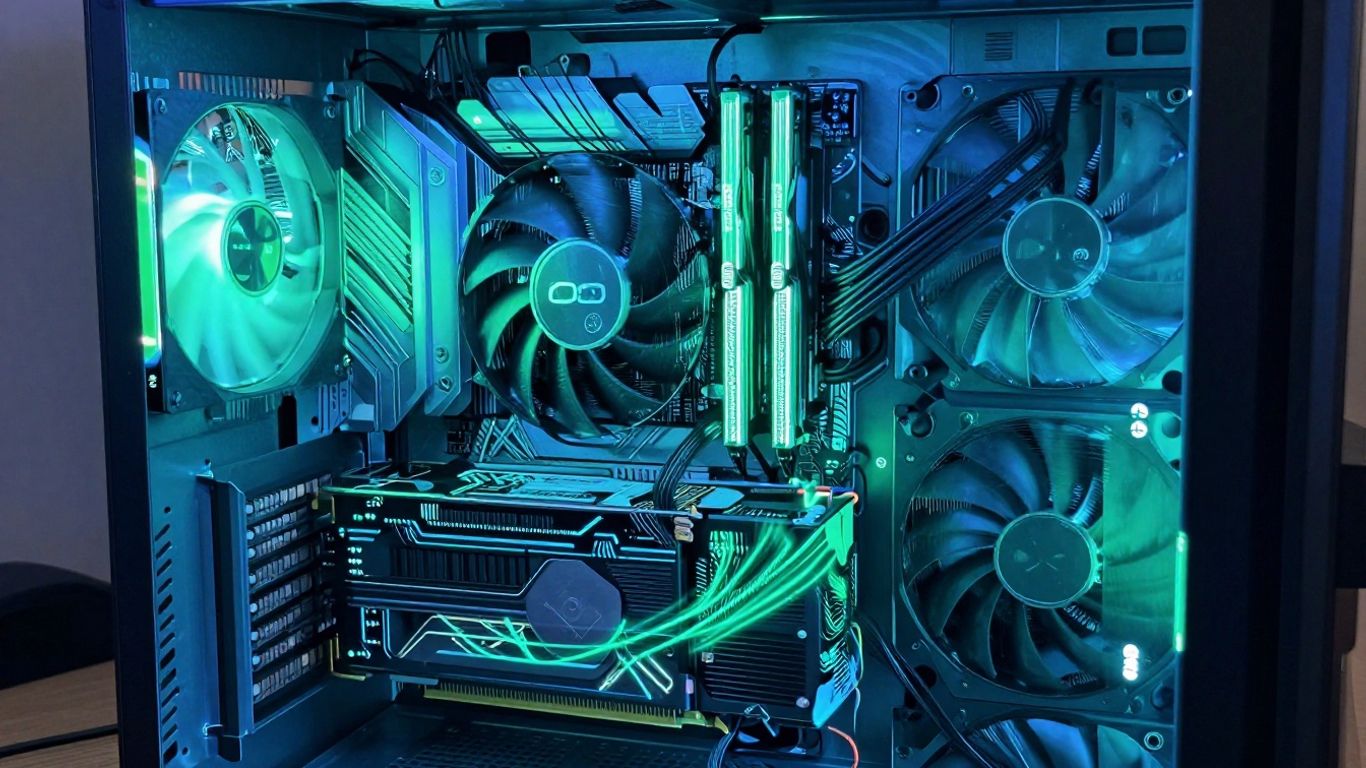
Therefore, what do we mean by frame rate? By frame rate, also known as frames per second or fps, I simply mean the number of unique pictures, also referred to as frames, that can be displayed on your screen per second by your computer. Imagine that you are flipping through a picture book; the faster you flip through it, the smoother the pictures appear.
Now let us summarize the above information:
- High FPS: This term indicates that your computer is processing many images per second. In most cases, high FPS would be preferred by gaming fans because this would translate into smooth motion with minimum blurring effects as well as faster reaction times when moving a computer mouse or console joystick. Therefore, it is something you should have when playing games.
- Low FPS: Low FPS would be noticeable through choppy and jerky movements. To illustrate this effect in an easier way, think of that flipbook where only a few images were flipped through per second – such a picture wouldn’t look smooth and pleasant.
- Monitor Refresh Rate: One more thing to keep in mind while discussing this topic is the fact that your monitor also has its limitations in terms of frame display rate which is defined by its refresh rate (expressed in Hz). For instance, even though your PC is providing 100 FPS, if you have a 60Hz display screen, you will only observe 60 FPS.
Essentially, frame rate is the speed at which your computer draws the pictures you see. More pictures per second generally means a better visual experience, especially when things are moving quickly on screen. It’s a key factor in how good games look and feel.
A high frame rate is very significant for achieving visually appealing gameplay. This does not mean you need a top-end graphics processing unit, but rather the integration of the hardware components within your PC to deliver quality video output.
Gamers can benefit greatly from high FPS when playing competitive games, especially since they rely on split-second timing. With a higher frame rate, players enjoy smoother gameplay with fluid visuals.
How to Change Frame Rate on PC
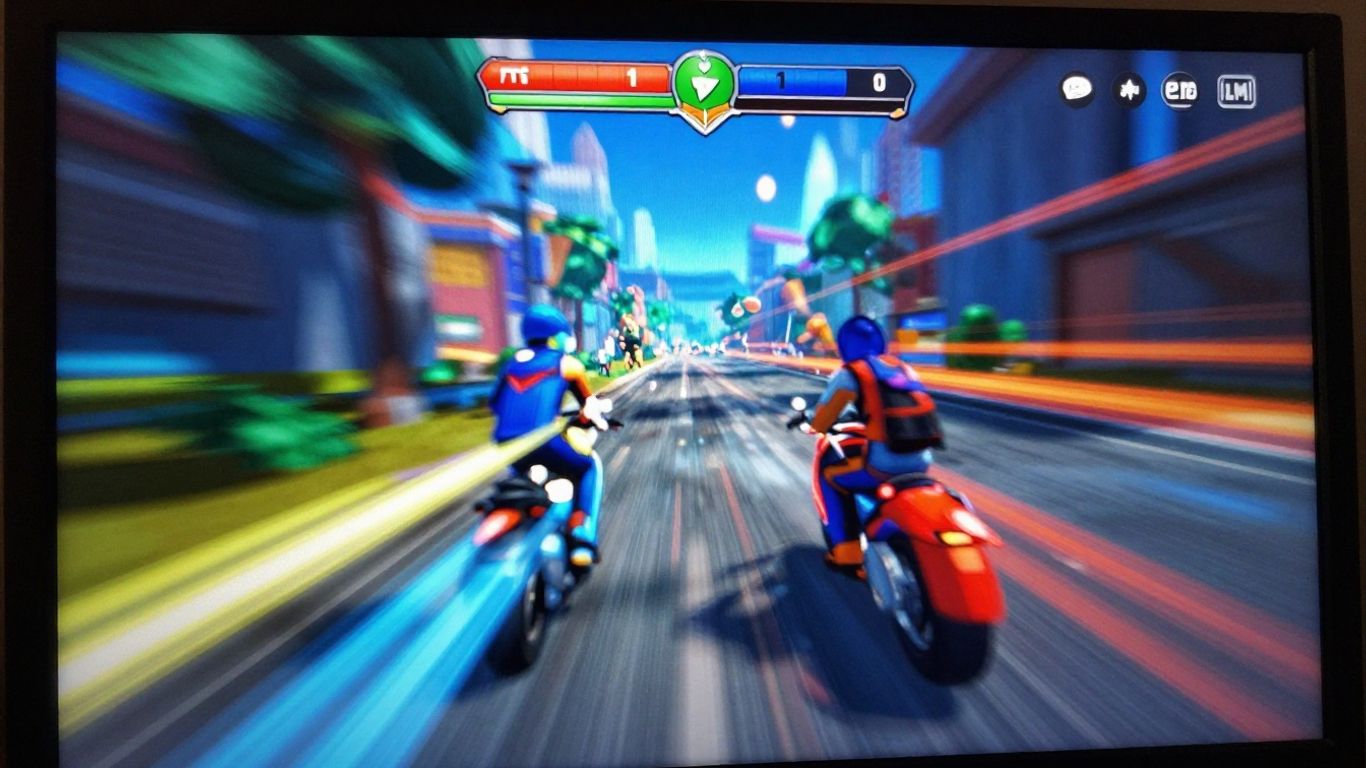
Why on earth would I even think about adjusting the FPS setting on my computer? First off, aesthetics play a huge role, but it isn’t always the case. Sometimes, your computer can work more efficiently or make things smoother for you.
Some of the reasons why I’d think about changing it include:
- Smoother Gameplay: This is something most gamers will be interested in. With my frame rate being too low, the gameplay can become inconsistent and lagging. By increasing or regulating the frame rate, all actions on the screen will be smoother and more fluid. I might even choose to reduce my frame rate if it is too high because of other problems.
- Reducing Screen Tearing: This refers to the presence of those distracting horizontal lines on my screen that result from an inconsistency between how many frames my graphics card produces and how many my monitor can display. By adjusting the frame rate, I should be able to fix this issue.
- Saving Power (Especially on Laptops): If I’m using my laptop and not engaging in resource-intensive activities such as playing games, I may consider reducing the frame rate. This would enable the graphics card to slow down and reduce battery consumption. It is an easy compromise where the demands for graphics are reduced for a longer period before charging.
- Improving Overall System Responsiveness: It is important to note that adjusting frame rates can have a broader impact on system performance, regardless of whether one is playing games or not. Even tasks such as surfing the internet and moving between windows can be enhanced.
Sometimes, the default settings aren’t the best for what you’re actually doing. It’s like wearing hiking boots to a formal dinner – they work, but they’re not ideal. Finding the right frame rate is about matching your hardware’s capabilities with the task at hand for the best visual experience and performance.
How to Check Current Frame Rate on PC
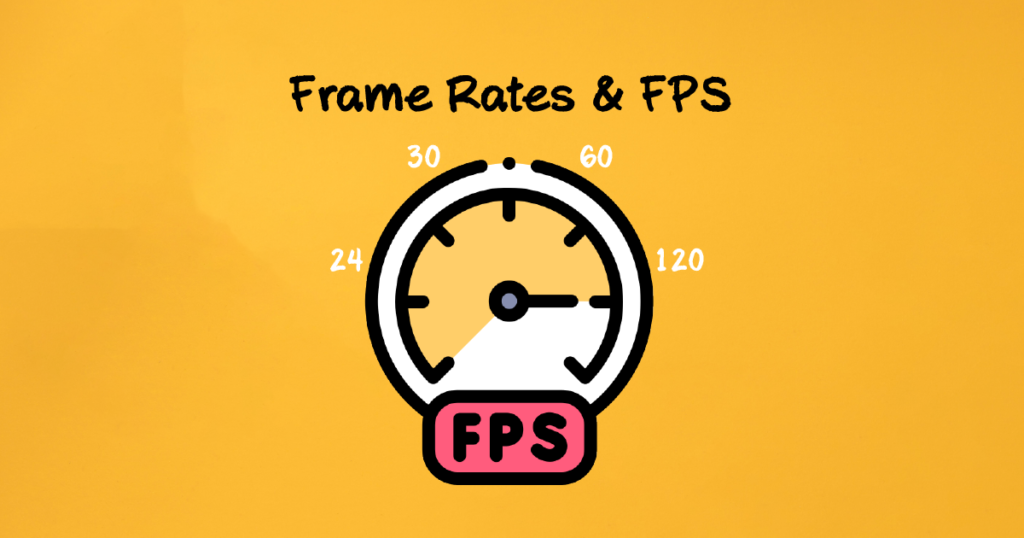
Before any configuration tweaking, it’s always good practice to have a baseline first. Just like gauging your speed before attempting to increase it, isn’t it? Getting an understanding of your initial framerate or FPS is very crucial in determining whether there really is a need for an improvement, as well as measuring how big a difference was made. There are some common methods that I employ when determining the FPS.
Using Windows Display Settings
Sometimes, the most straightforward approach lies within Windows itself. Although it may not be the most comprehensive, it provides some guidance, particularly when you consider what your monitor is capable of. Here, you should find the refresh rate of your monitor, which is related to its FPS.
Using NVIDIA Control Panel
If you have a graphics card made by NVIDIA, then the control panel provided by them would be a useful tool for you. It will give you detailed information regarding the performance of the computer, and it can also allow you to turn on the on-screen display which will help you get your FPS when you are playing a game.
Using AMD Radeon Software
For the folks using the AMD graphics card, Radeon Software will be your choice. The user interface is similar to that of the NVIDIA control panel, providing options to check your performance metrics. Personally, I have found the setup quite easy, and you can easily enable the performance overlay so you get to see the frames per second.
Using FPS Counter Tools in Games
In all honesty, I find this my favorite technique. Pretty much all recent games include an option that allows you to display your FPS on-screen during gameplay. This is by far the most accurate way of finding out the performance of your game.
All you’ll need to do is search for the option in the game settings menu in such categories as Display/Performance/Graphics. This technique is great for testing how various in-game options impact your frame rate. In some cases, it even includes more data than just your current frame rate such as CPU/GPU usage.
Checking your FPS is more than just a number; it’s a window into how smoothly your games are running. A consistent, high FPS means a fluid experience, while dips and stutters can really break the immersion. Knowing how to check it is the first step to improving your gaming setup.
However, there is also a specific tool for such purpose – FPS Calculator, which will allow you to find out how many frames per second you should get considering your computer system, yet in order to see what’s going on right now, I would choose either in-game tools or GPU monitoring programs.
How to Change Frame Rate on Windows PC
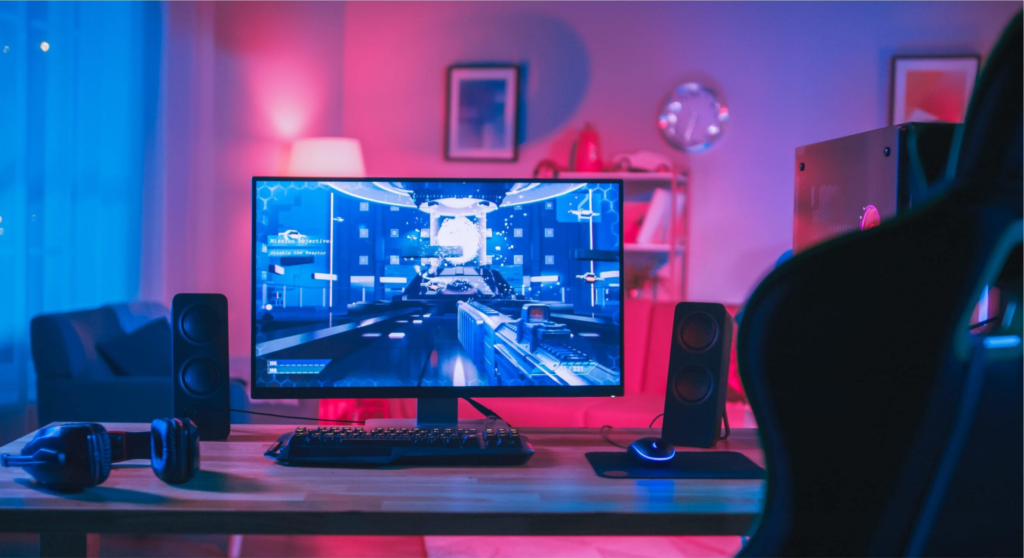
Okay, now that you want to fine-tune the refresh rate on your computer, let me walk you through it. This process is really easy, and you’ll be amazed at the improvements once you get used to it.
In most cases, you will have to adjust the refresh rate of your monitor, which refers to how often your display updates per second. The more frequent the refresh, the better the performance, particularly while gaming.
This is how I do it:
- Head to Display Settings: To do this, right-click on the desktop. In the list of options displayed, select ‘Display settings’.
- Find Advanced Display Settings: In the Display settings window, scroll down a bit. Look for ‘Advanced display settings’ and select it. Here lies the power to make changes!
- Adjust the Refresh Rate: In the window that pops up, look for the option ‘Refresh rate’. Select the drop-down menu. In the drop-down menu, you will be able to see the refresh rates supported by your computer’s monitor, ranging from 60Hz, 120Hz, to even more. Choose the one that suits you the best. If you are trying to improve your gaming experience, then a higher refresh rate would suit you.
Remember, your monitor has to support the refresh rate you’re trying to set. You can’t just pick 240Hz if your screen is only built for 60Hz. It’s like trying to fit a square peg in a round hole – it just won’t work. Always check what your hardware is capable of before you start changing things.
After setting the refresh rate of your choice, remember to click the “Apply” or “Save Changes” button at the bottom of the window. In some cases, Windows may prompt you to confirm your choice within a specific period, so be on the lookout for that.
If you want to increase your frames per second while playing video games, another way to do that would be to enable Windows 10’s Game Mode.
Open Windows Display Settings
The first step toward tampering with the frame rate, or rather the refresh rate of your monitor, involves opening the Display Settings on Windows. This process isn’t very difficult. For one, I simply go to the Windows search bar and type “display” before pressing Enter. In no time, I’m there.
Now, after you have opened the main Display Settings window, all you have to do is scroll a little bit down. You should see a tab labeled either “Advanced display settings” or “Advanced display”. Once you’ve clicked on it, you are good to go.
Select Advanced Display Options
Once you click on “Advanced Display Settings,” you will get another window. In case you have more than one monitor connected, then choose the right display from the drop-down list present at the top.
The options will include “Display 1,” “Display 2,” and so forth. You need to make sure that you adjust the settings according to the monitor you are looking at.
Change Refresh Rate Settings
Next, locate the “Refresh rate” setting. There will be a drop-down box next to the setting. All the available refresh rates on your monitor will be listed in the box.
Normally, this should be set at 60Hz by default. However, if your monitor has higher refresh rates such as 120Hz or 144Hz, they will be included as well.
Keep in mind that not all refresh rates will work with your current screen resolution. Windows will usually let you know if there’s a conflict, sometimes with a little asterisk. If you pick a rate that doesn’t play nice, your screen might go black for a second, or the resolution might change automatically. It’s usually fine, but it’s good to be aware.
Save and Apply Changes
After choosing the required refresh rate, you will need to find a button like “Keep changes” or “Apply.” Click on it. The system will then require you to confirm whether you would like to apply these changes.
In case nothing is done within approximately 15 seconds, you will go back to the initial state of the settings, which may be helpful in case some trouble occurs with your settings. When you are satisfied with what you see, click on “Keep changes” and voila!
How to Change Frame Rate Using NVIDIA Graphics Card
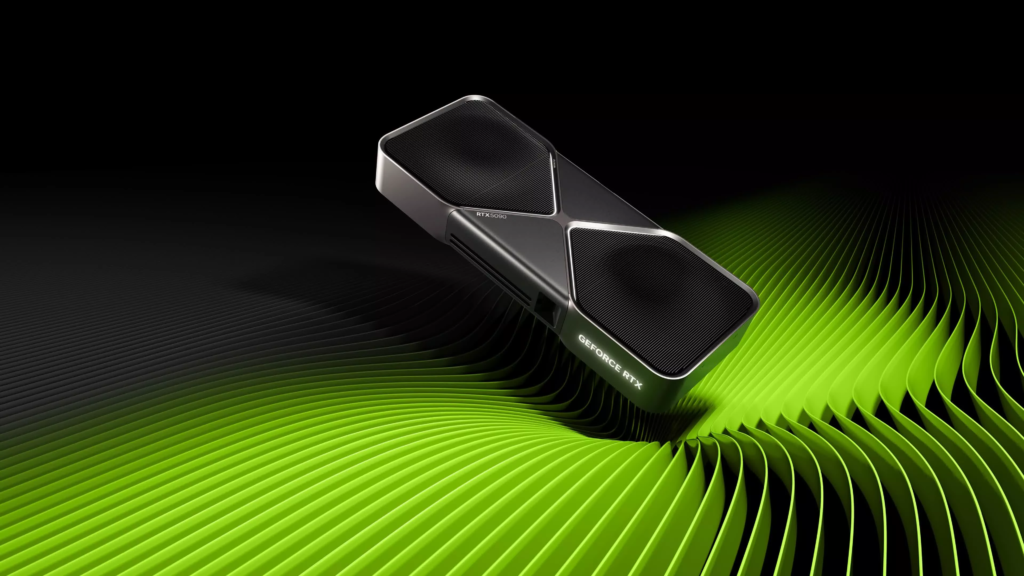
For users who have the NVIDIA graphics card, there is a special control panel through which one can make adjustments to various parameters, including the frame rate. However, this method may be slightly complicated compared to the default Windows parameter adjustment method; however, it gives more flexibility for individual programs. In my experience, it is always convenient to start the process by opening the NVIDIA Control Panel – usually found by right-clicking the desktop background.
In this case, I navigate to the section ‘Manage 3D settings’. In my opinion, it is better to go straight into the Program settings tab here, which allows me to adjust various parameters for particular games. The advantage of this approach is the ability to work separately with certain programs and not use general settings, which can be useful if the games are rather resource-intensive.
Here is what I do next:
- Open NVIDIA Control Panel: Right-click on your desktop background and click ‘NVIDIA Control Panel’.
- Navigate to Program Settings: From the sidebar menu, click on ‘Manage 3D settings’, followed by clicking on the tab labeled ‘Program Settings’.
- Select Your Game: To add a new game to the list, click on ‘Add’. You can browse for the location of the game’s executable file if it is not already in the list.
- Find the Max Frame Rate Setting: Look through the settings list for an option called ‘Max Frame Rate’.
- Set Your Desired FPS: Click on the dropdown box next to ‘Max Frame Rate’ and select your desired frame rate. I normally set mine to my monitor’s maximum refresh rate or slightly below if I want to save on energy usage.
- Apply Changes: Click on the ‘Apply’ button located at the bottom right corner of the window.
Sometimes, setting a frame rate limit in the NVIDIA Control Panel can interact strangely with a game’s own settings or other performance features. If you notice weird behavior, like stuttering or inconsistent performance, it’s often a good idea to go back and check if disabling the in-game FPS limiter or adjusting other related settings helps. It’s all about finding that sweet spot for each game.
Keep in mind that you could also change other settings within this tab, such as “Power management mode” (set it to “Prefer maximum performance”) or “Vertical sync,” which might affect your gaming experience.
Trial and error are the key here; you might need some time before you achieve the desired effect. You will find more information on advanced settings if you explore the NVIDIA Control Panel settings.
Do you want to change the speed of your game using the NVIDIA graphics card? We have a step-by-step guide on how to do it! Check out our article “How to Change Frame Rate Using NVIDIA Graphics Card” and learn how to change your settings in just a few minutes. Find more information on our website!
Wrapping It Up
So there it is. Modifying your frame rate, or FPS, on your computer is not a daunting technical task. In most cases, all you would be doing is modifying some settings in your games or even in your windows operating system. I found out that changing some settings in my game helped me improve the performance of my games.
If you are having a laggy experience playing your games or would like your games to perform better visually, then you might want to consider trying this out. There is no need to spend extra cash buying expensive hardware when simple tweaks can do the job.
Frequently Asked Questions
What exactly is frame rate, and why is it important for my PC?
Frame rate, often called FPS (frames per second), is basically how many pictures your computer can show you each second. Think of it like a flipbook – the more pictures you flip per second, the smoother the animation looks. For games and videos, a higher frame rate means everything looks super smooth and responsive. If it’s too low, things can look choppy or laggy, which really messes with the fun.
How can I tell what frame rate my PC is currently running at?
You can check your current frame rate in a few ways. Sometimes, games have a built-in counter you can turn on in their settings. You can also use your graphics card’s software, like the NVIDIA Control Panel or AMD Radeon Software, which often have performance overlay options. Another neat trick is using third-party tools designed specifically for showing FPS.
What’s the difference between frame rate and my monitor’s refresh rate?
That’s a great question! Your monitor’s refresh rate, measured in Hertz (Hz), is the maximum number of times it can update the image on the screen each second. So, if you have a 60Hz monitor, it can show a maximum of 60 frames per second. Even if your PC is producing 100 FPS, your 60Hz monitor will only display 60 of those frames, limiting how smooth things can look.
Can changing my monitor’s refresh rate actually help my gaming?
Absolutely! If your monitor supports a higher refresh rate, like 120Hz or 144Hz, and your PC can produce frames at that speed, you’ll see a much smoother and more responsive gaming experience. It can make fast-paced games feel way better and give you an edge because things appear on screen faster.
What are some common reasons my PC might have a low frame rate?
There are a bunch of things that can slow down your frame rate. Often, it’s because the game is asking too much of your computer. This could be due to older graphics card drivers, not enough RAM, a processor that’s not powerful enough, or even just having the game’s graphics settings turned up way too high. Sometimes, just updating your drivers or lowering some in-game settings can make a big difference.
Besides changing settings, are there other ways to boost my PC’s frame rate?
Definitely! Keeping your graphics card drivers up-to-date is a big one, as new drivers often include performance improvements. Also, making sure your PC isn’t running too many other programs in the background while you’re gaming frees up resources. For laptops, ensuring it’s plugged in and set to a high-performance power mode is key. In some cases, upgrading hardware like your RAM or graphics card might be necessary for the best results.
Ready to Choose the Right Smart Doorbell?
Now that you know how to install a smart doorbell, the real question is — which one is actually worth your money? Don’t guess. We’ve tested the top options so you can pick the best one for your setup.
👉 Pro tip: If you want zero monthly fees, start with Eufy. If you prefer Alexa integration, Ring might suit you better.